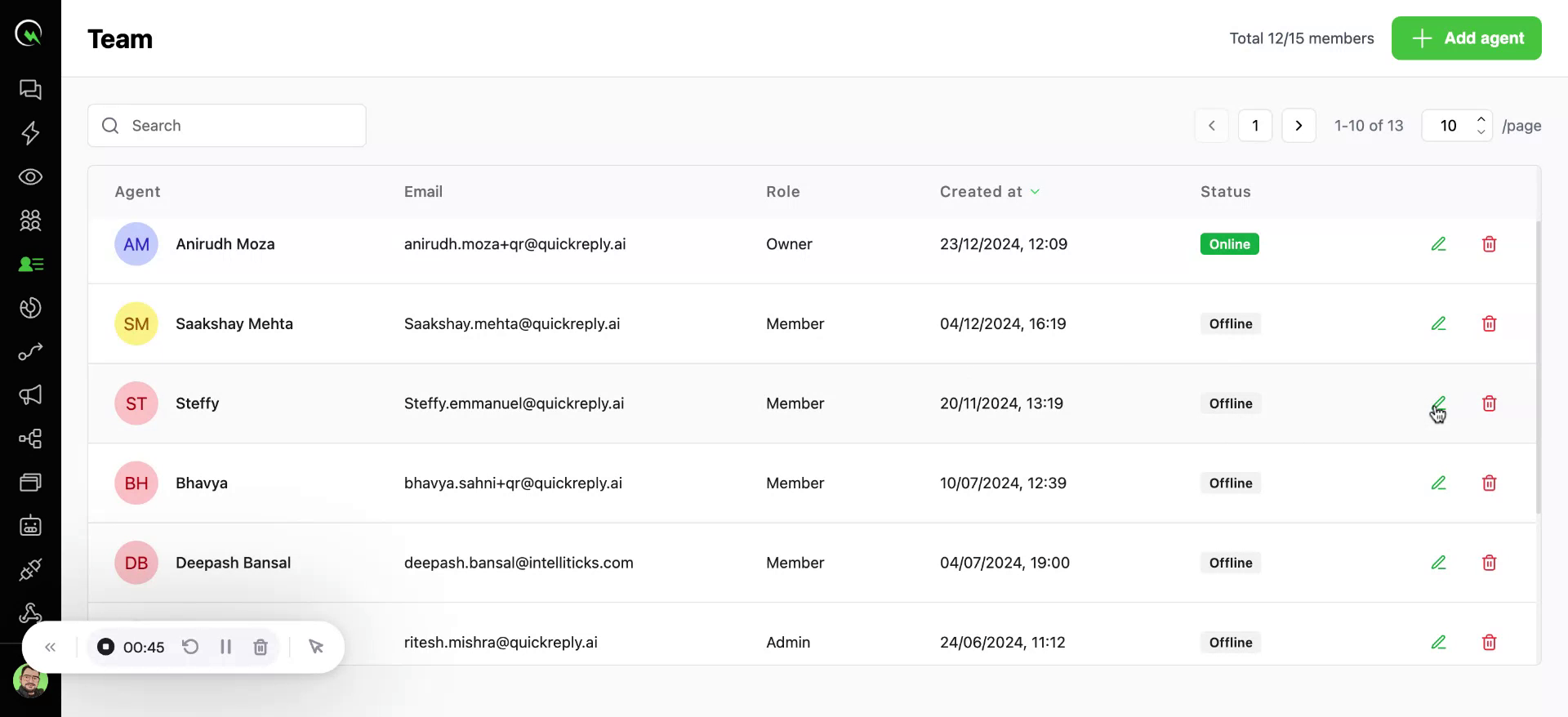
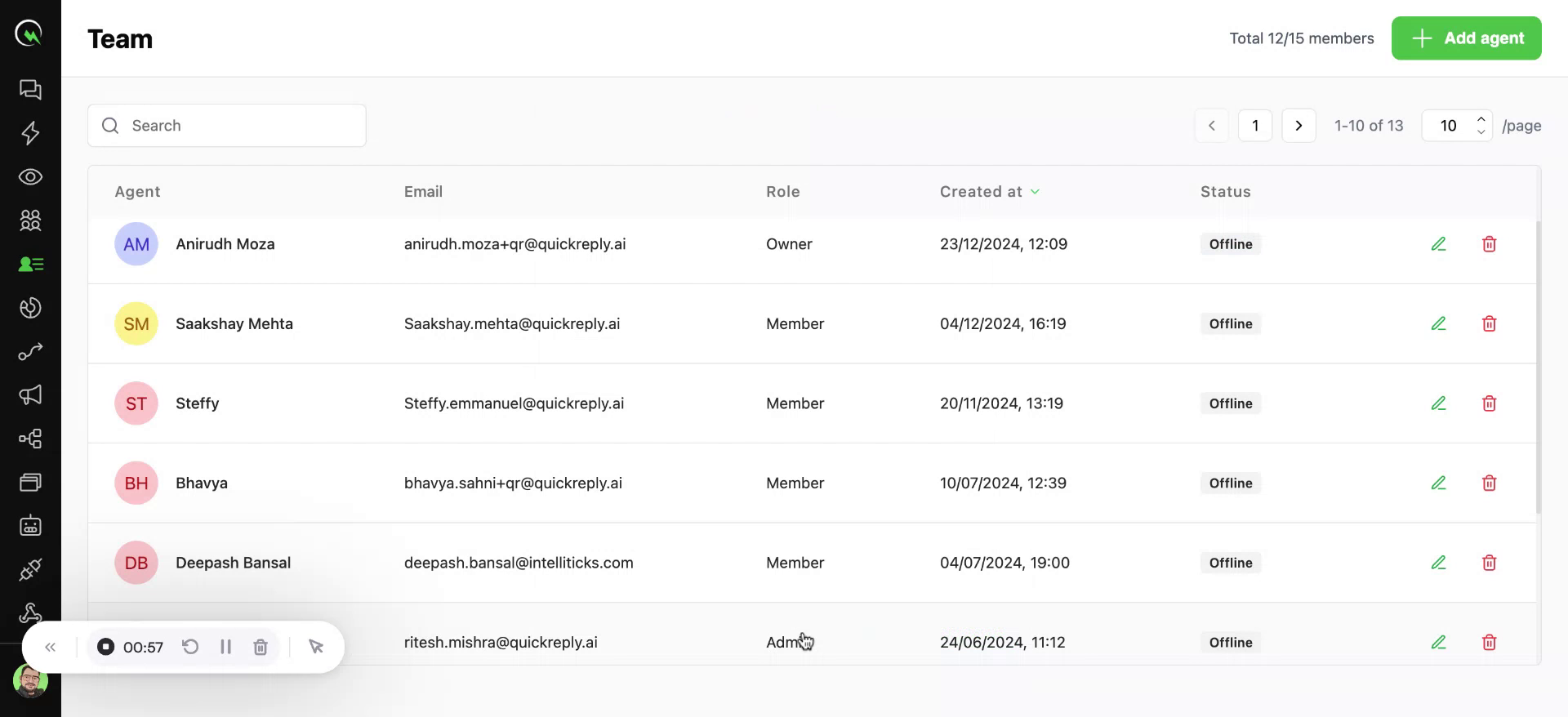
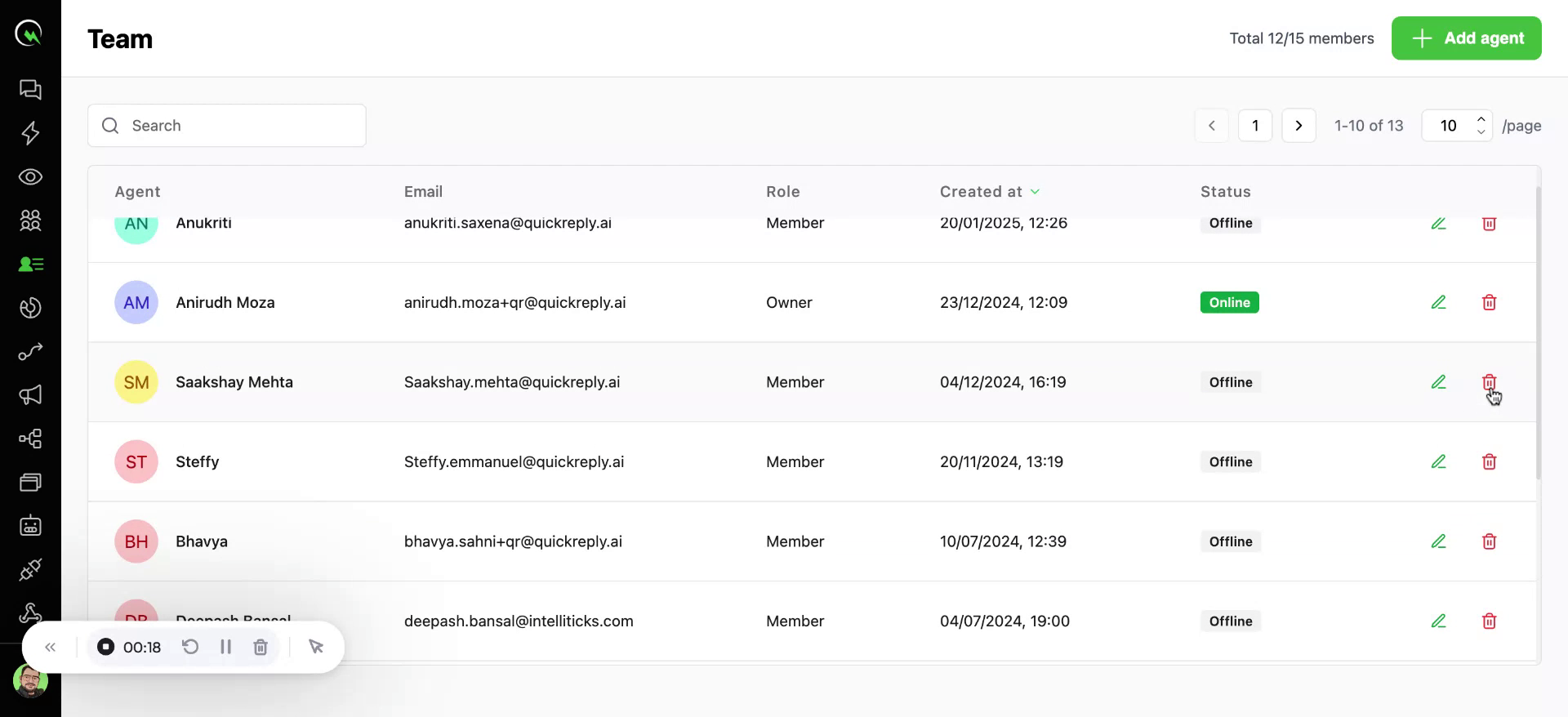
Team

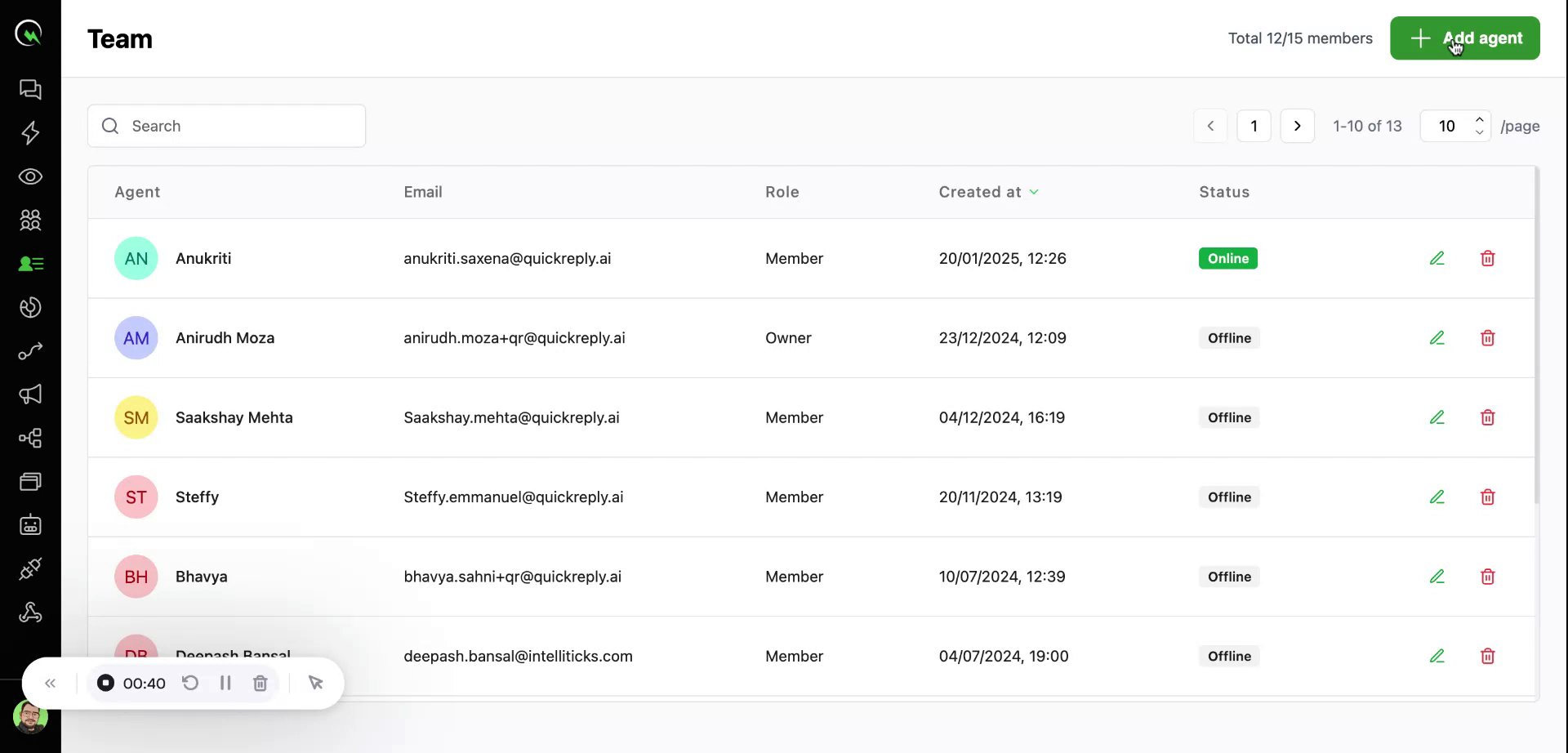
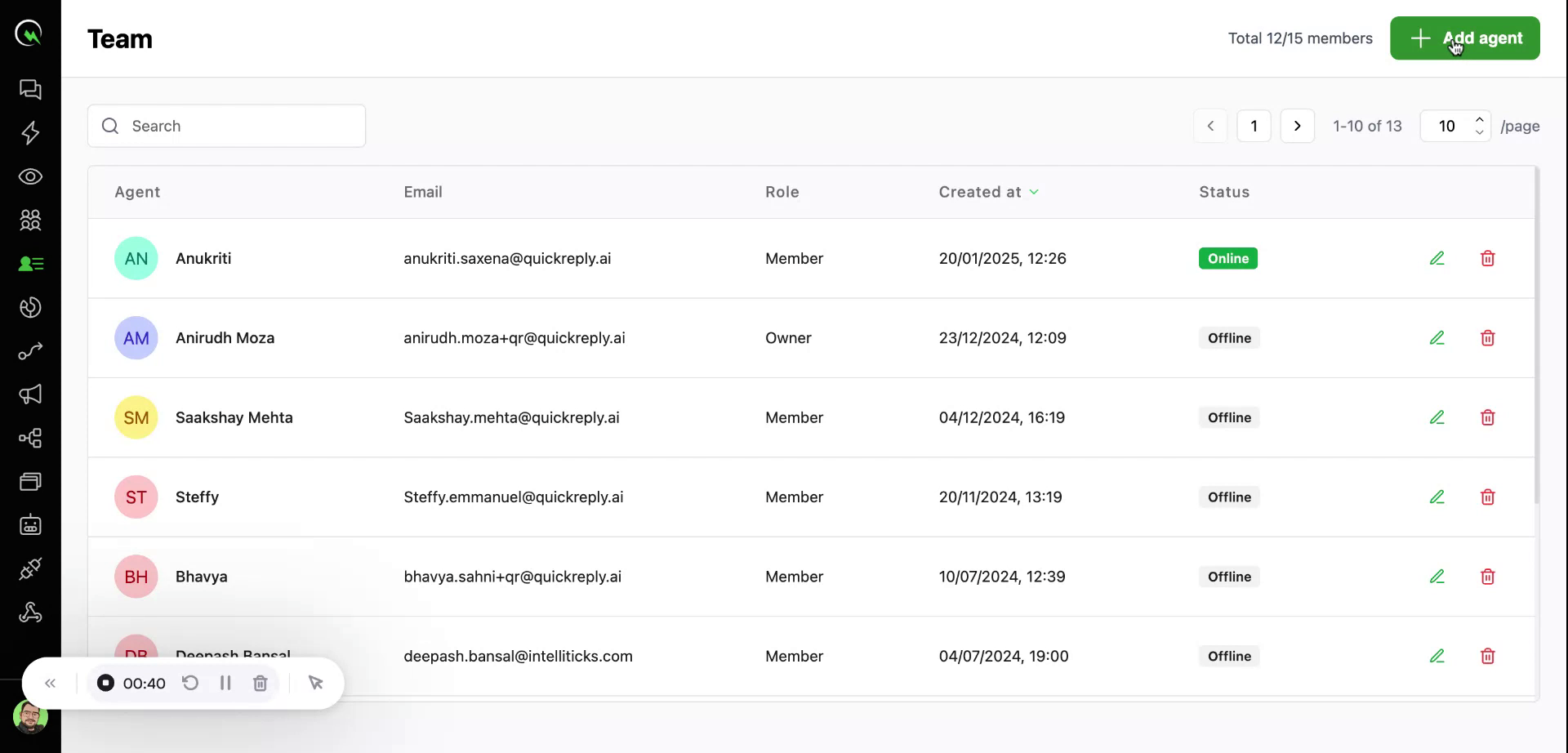
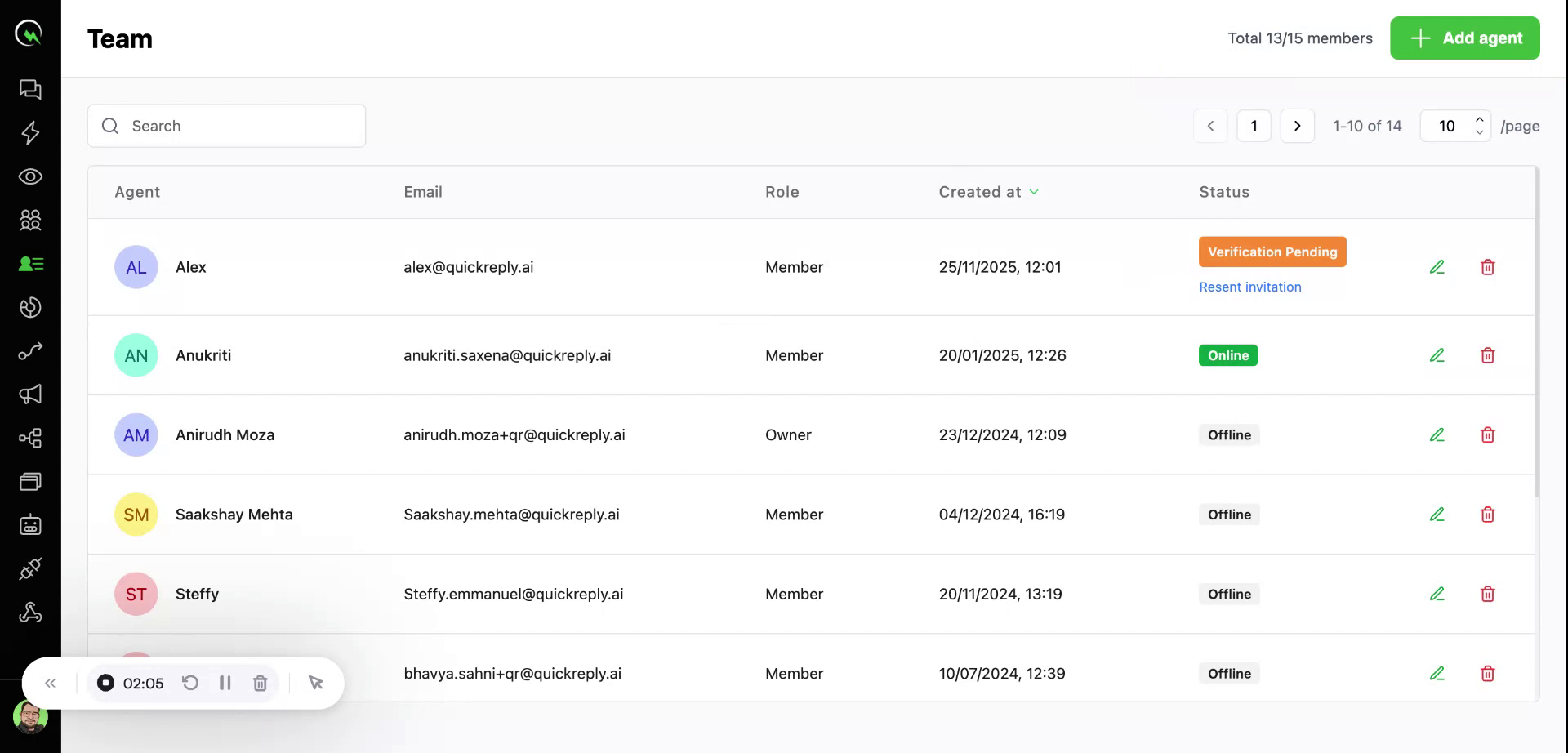
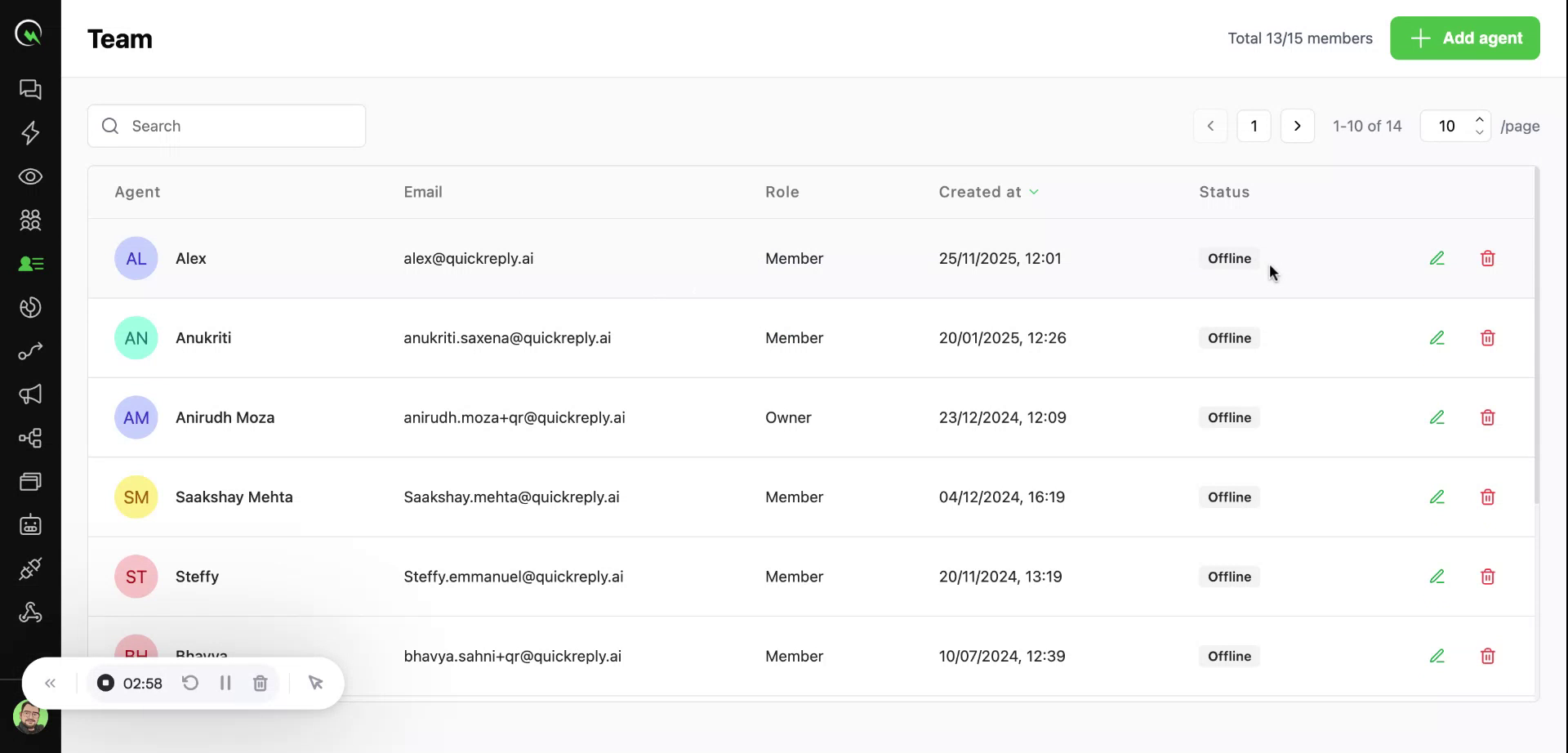
The Team section in QuickReply.ai allows you to manage who has access to your QuickReply.ai workspace.

Roles & Permissions

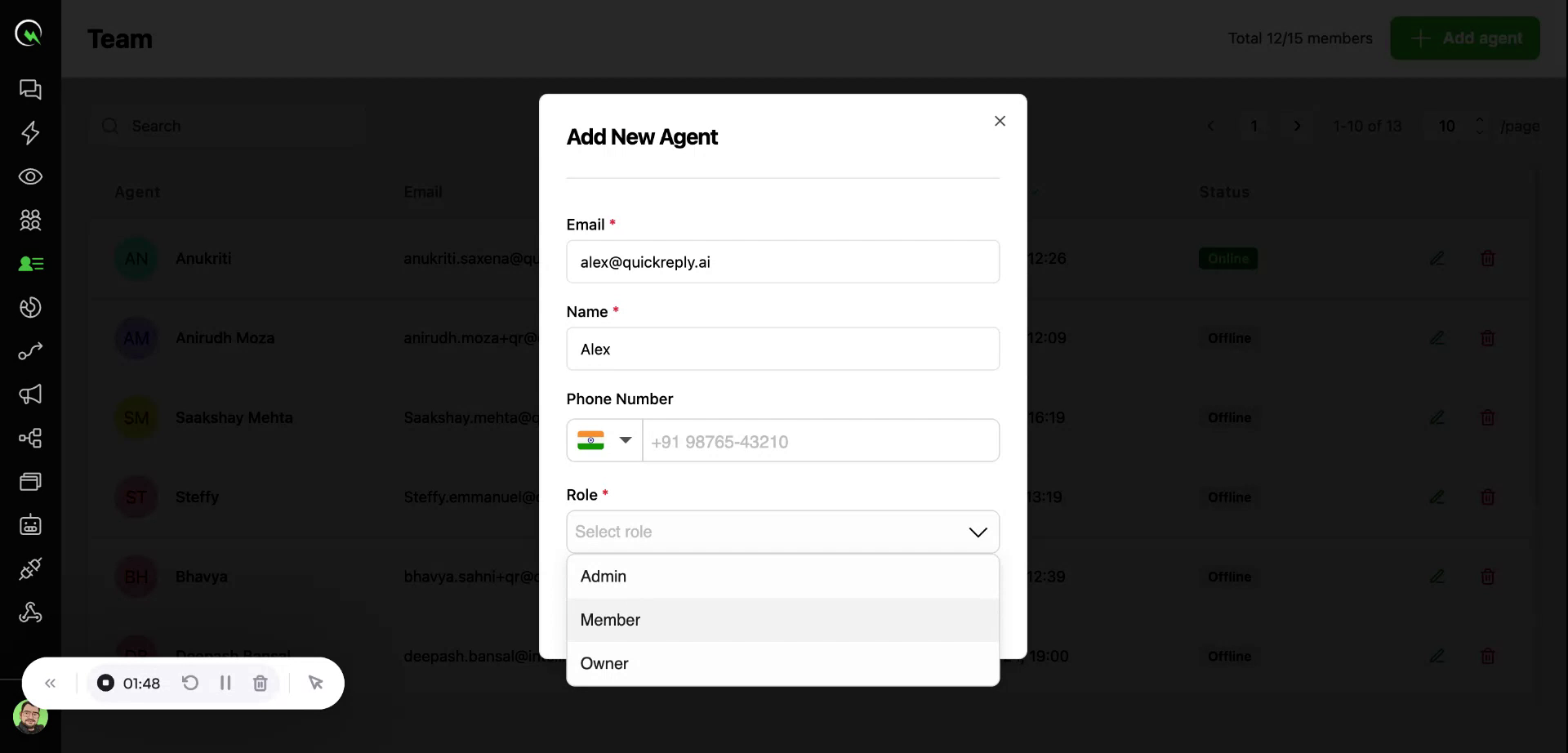
QuickReply.ai provides three access roles — each designed to ensure the right users have the appropriate level of control and visibility.

Role
Access Level
Can Manage/Modify
Ideal For

Owner

Full access — including billing, workflows, templates, CRM integrations, automation, and team management. Cannot be restricted by Admin or Member.

Owners, Admins, Members

Founders, Organization heads

Admin

Advanced access — can manage features, broadcasts, templates, chats, and settings. Cannot remove or modify Owner access but can manage Admins and Members.

Admins, Members

Team leads, operational managers

Member

Limited access — can chat with customers, send campaigns (if enabled), and access only assigned modules. No access to billing, integrations, or account-wide settings.

Only self

Sales reps, customer support agents, junior marketers

Best Practices

  • Assign Admin role to people who need operational authority.

  • Keep Owner access with business leadership.

  • Use Member role for day-to-day support, sales, and execution teams.

  • Remove or downgrade access when roles change or employees exit.


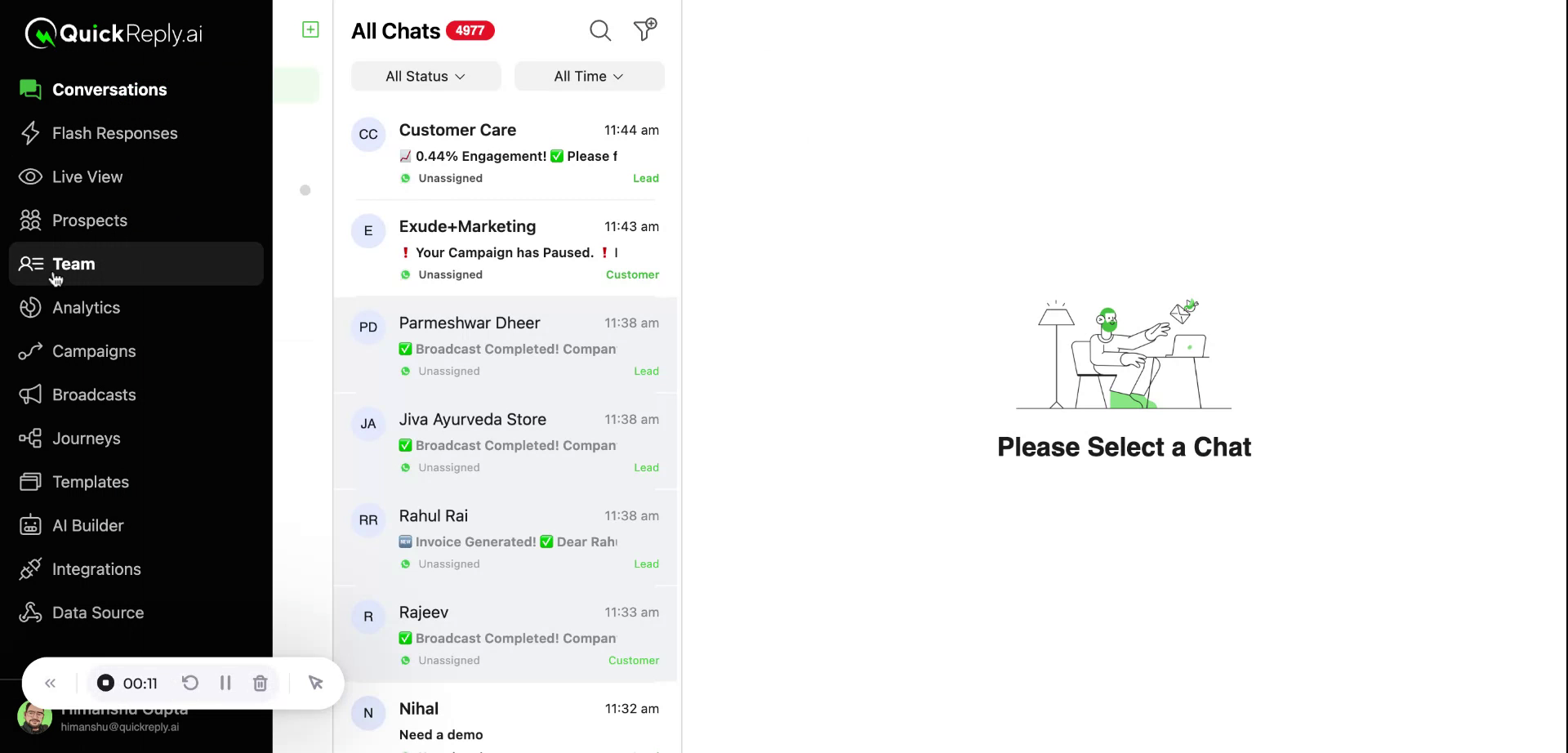
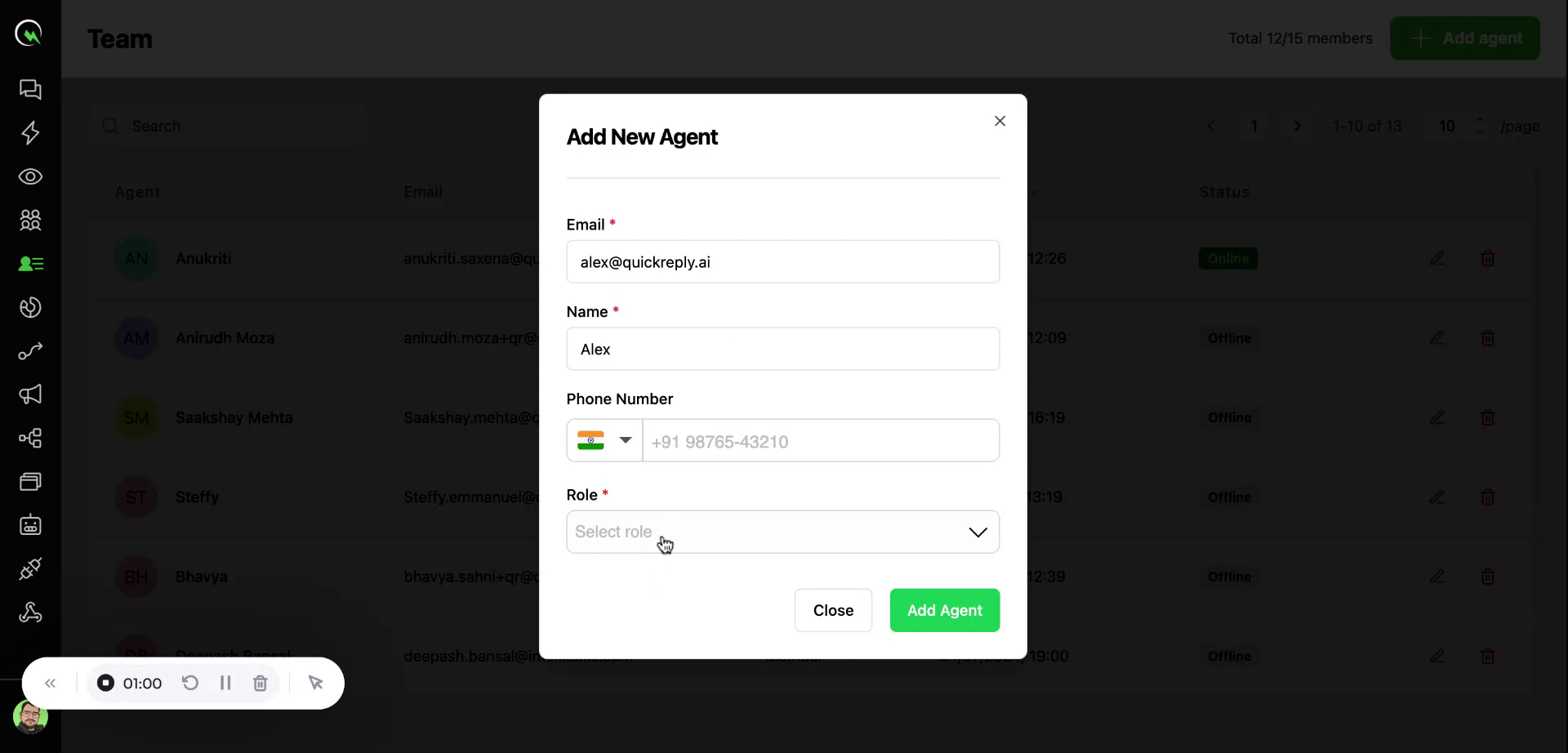
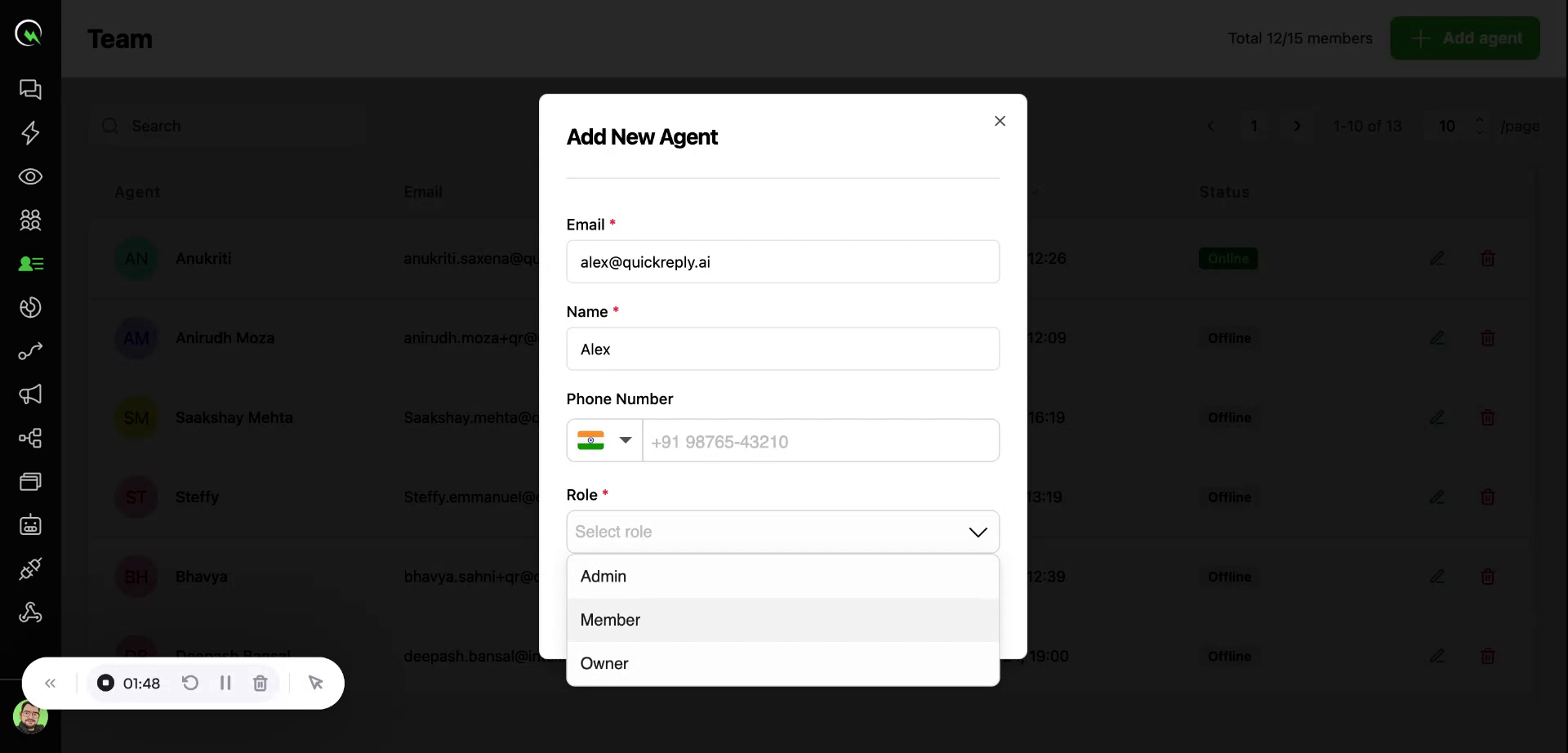
How to add a new Team Member?

This document provides detailed instructions on how to manage your team in QuickReply. You will learn how to navigate the team section, understand team roles, add new agents, and verify them.


How to edit the profile of a Team Member or change their Role?


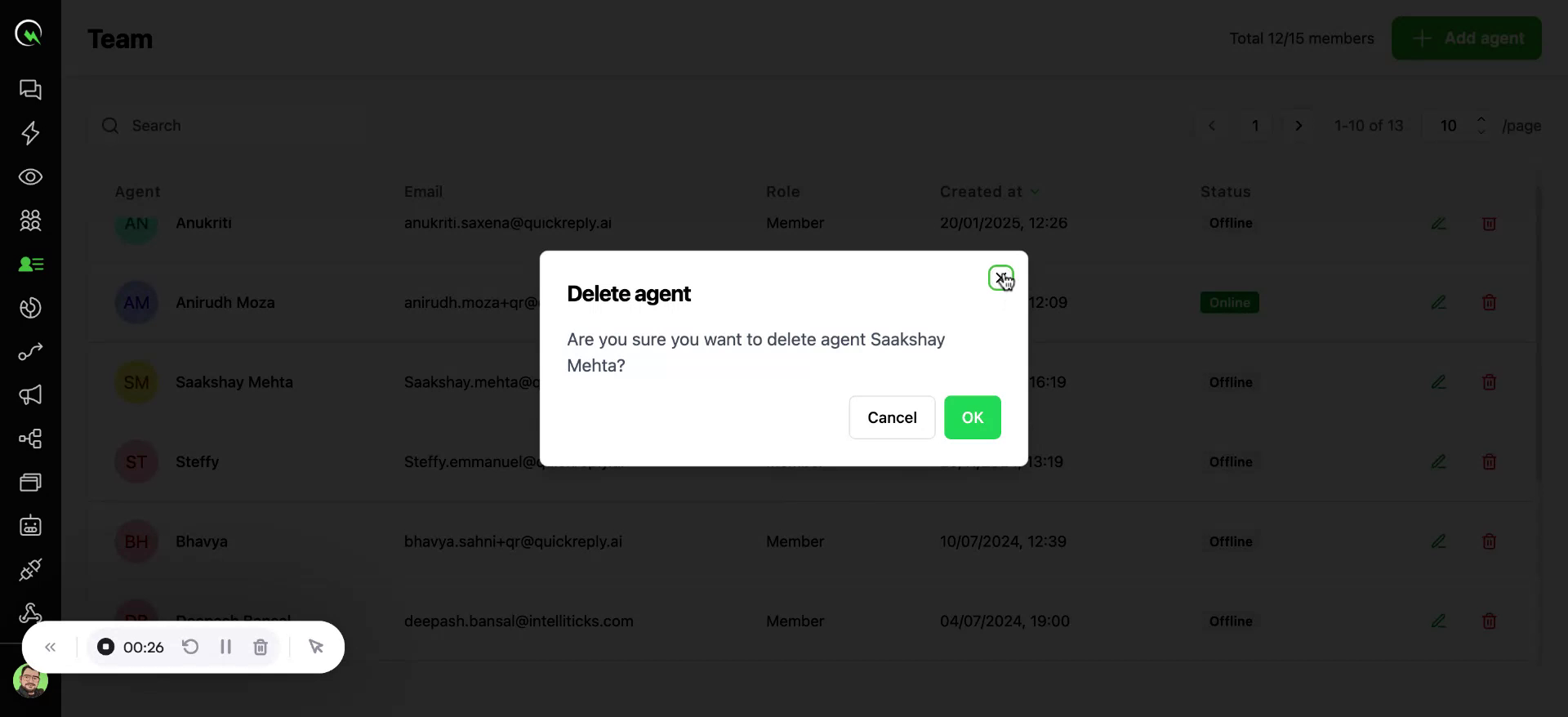
How to delete a Team Member?

Last updated

Was this helpful?