> For the complete documentation index, see [llms.txt](https://docs.quickreply.ai/llms.txt). Markdown versions of documentation pages are available by appending `.md` to page URLs; this page is available as [Markdown](https://docs.quickreply.ai/product-modules/campaigns/how-to-create-a-drip-campaign.md).
# How to Create a Drip Campaign
This module guides you through the complete process of building an automated WhatsApp drip campaign in QuickReply—from setting up the initial trigger to defining the exit conditions. Each step can be customized to match your business flow.
## **Trigger & Filters**
### **Navigate to Campaigns in the QuickReply App**
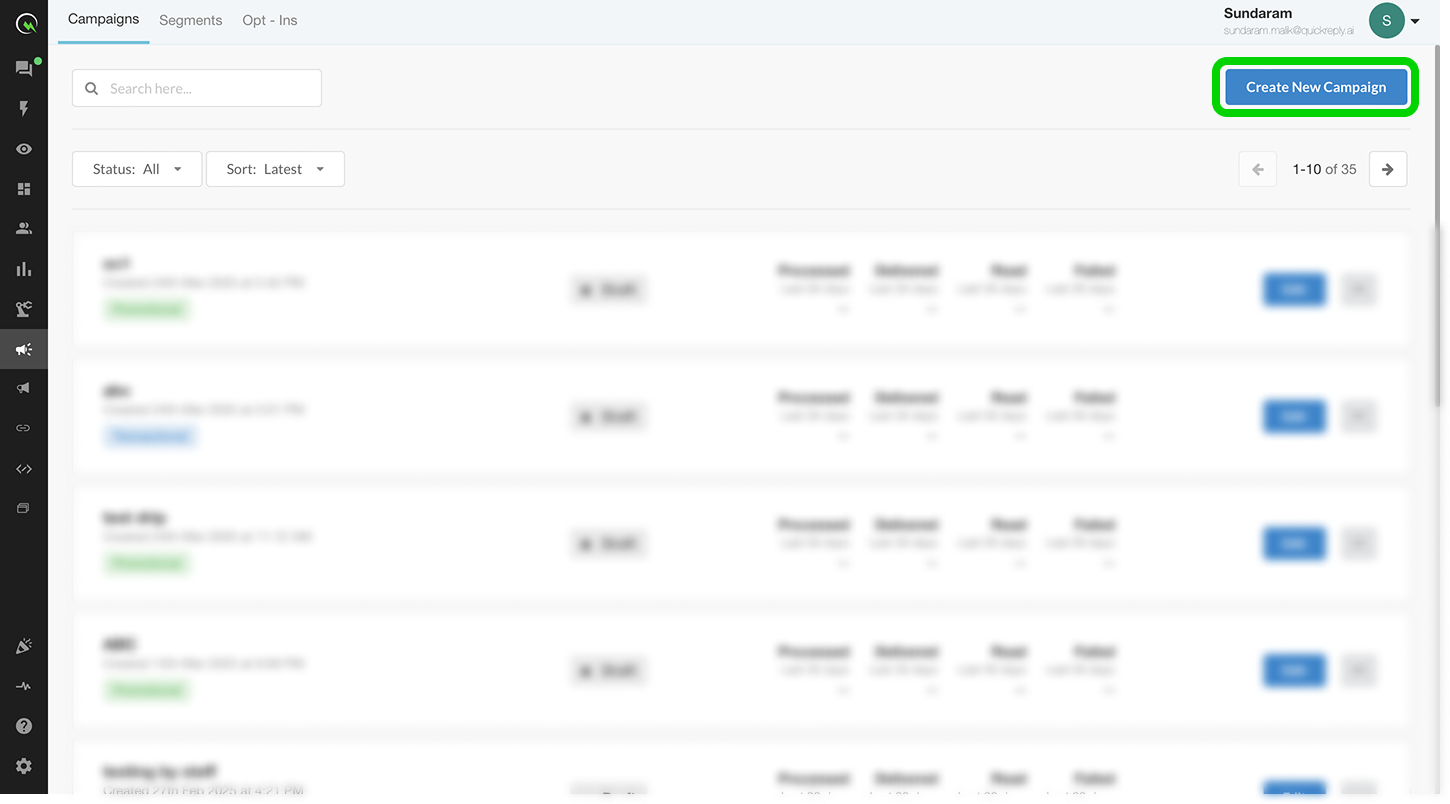
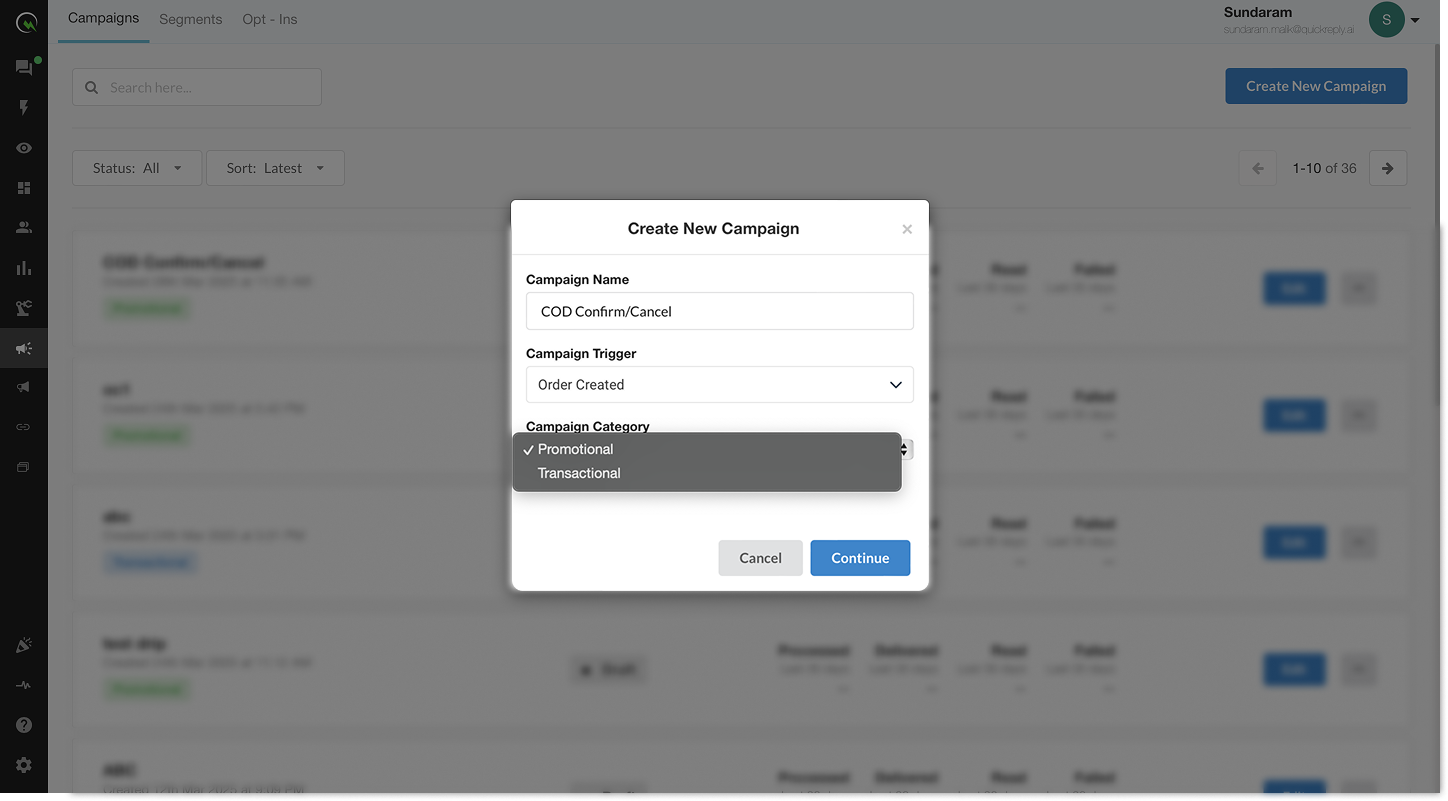
Go to the **‘Campaigns’** tab from the main menu in your QuickReply dashboard. Click **‘Create New Campaign’** to begin setting up your campaign.
### **Select the Trigger Event**
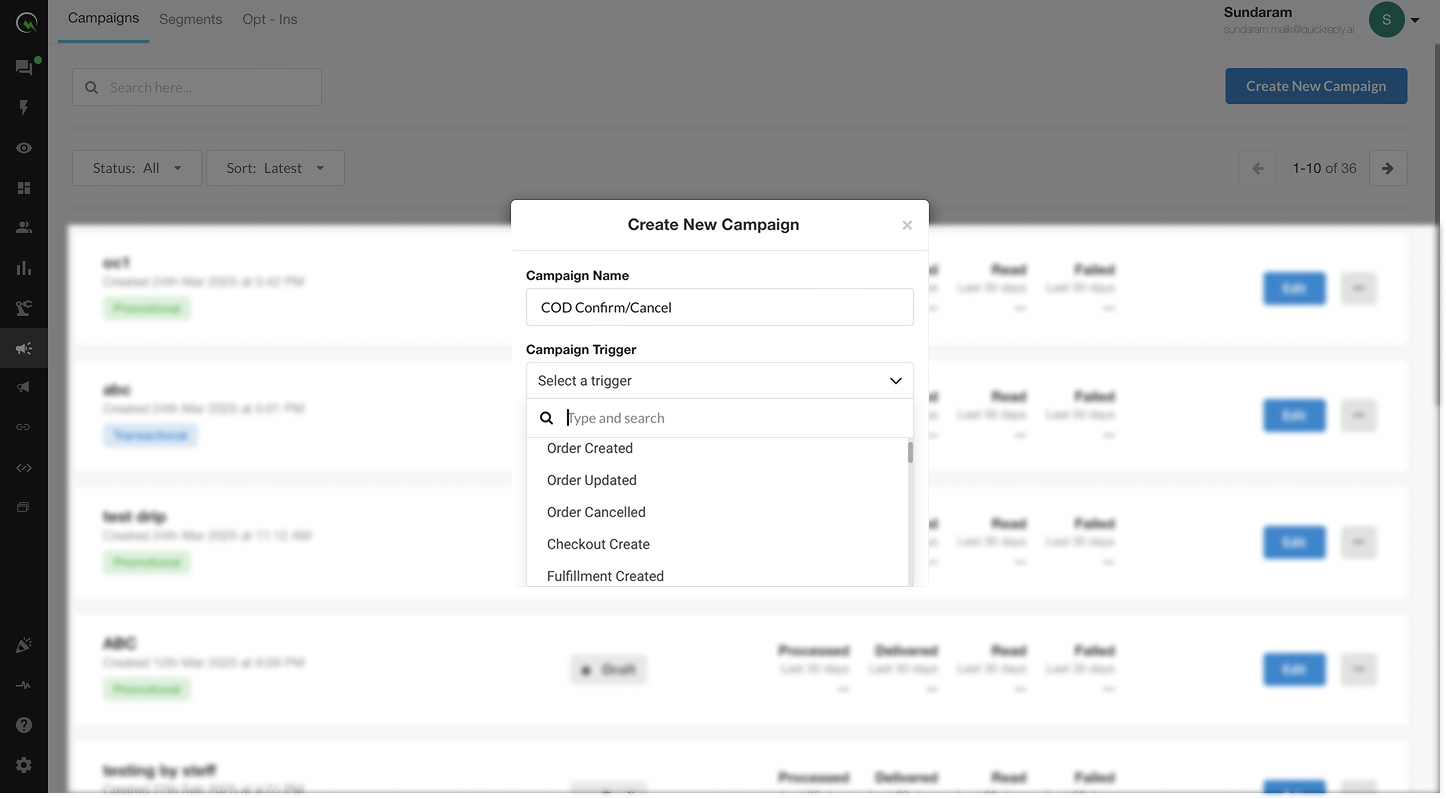
Type in a preferred name for your campaign.\
Now choose a **Campaign Trigger- an event that will initiate the campaign**. Triggers define when a user should enter your drip workflow. Triggers for Shopify users can include:
* **Order placed**
* **Order shipped**
* **Order fulfilled**
* **Abandoned checkout**
* **Product viewed**
* **Custom events via API**
### Select a Campaign Category
From the dropdown given, choose between a Promotional or a Transactional campaign. This determines how WhatsApp will classify and process your messages, and it also impacts what type of templates you can use.
{% tabs %}
{% tab title="Promotional Campaign" %}
**What It Means:**\
Promotional campaigns are used to send marketing, advertising, or awareness messages to users. These messages are intended to drive conversions, boost engagement, or announce offers.
**Examples:**
* “Get 10% off your next order! Offer ends today.”
* “New product launch—check it out now!”
* “We miss you! Here’s a reward to come back.”
**Key Points:**
* You must use **Marketing templates** that are approved under Meta's marketing category.
* Customers must have **opted in** to receive marketing messages.
* There are [**frequency**](/overview/messaging-channels/whatsapp/concepts.md#frequency-capping) **and** [**quality rules**](/overview/messaging-channels/whatsapp/concepts.md#quality-rating) from Meta—too many sends without engagement may affect delivery rates.
{% endtab %}
{% tab title="Transactional Campaigns" %}
**What It Means:**\
Transactional campaigns are used to send critical information about orders, services, or account updates. These messages are **non-promotional** and often part of service workflows.
**Examples:**
* “Your order #12345 has been shipped.”
* “Reminder: Your appointment is tomorrow at 10:30 AM.”
* “Please confirm your COD order by replying YES.”
**Key Points:**
* Must use **Utility or Authentication** templates only.
* These templates are strictly monitored—**sending promotional content via transactional messages can lead to template rejection or number blocks**.
* Ideal for operational, service-based communication.
{% endtab %}
{% endtabs %}
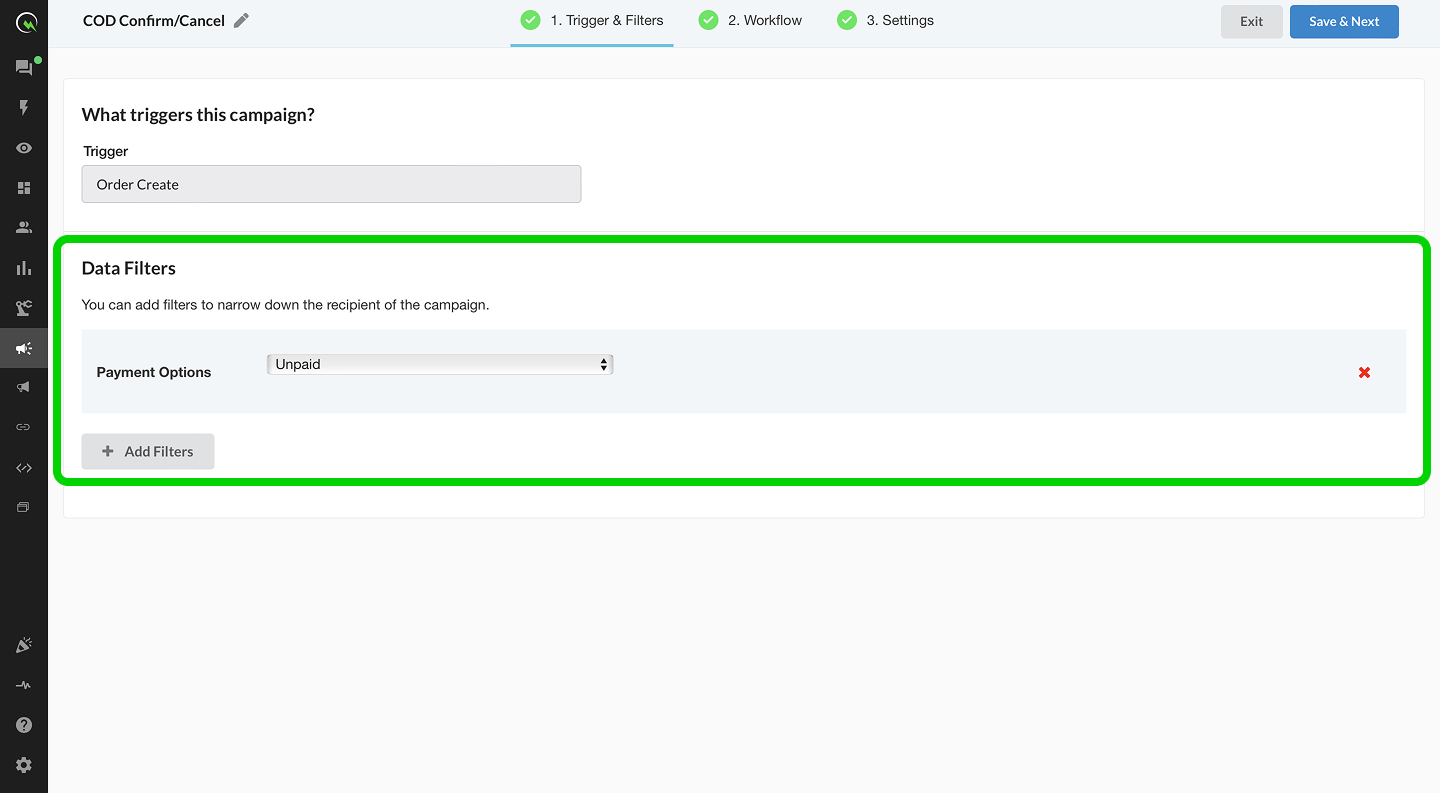
### **Define Data Filters for the Trigger Event (Optional but Recommended)**
Add filters to narrow down which users qualify to enter the drip campaign. For example:
* **Order amount > ₹1000**
* **Customer tag = VIP**
* **Product Category = Shoes**
These filters help you personalize your campaigns to specific customer segments.
### **Things to Keep in Mind**
* If no filters are applied, the drip will trigger for **all users** who meet the main event condition.
* Make sure filters don’t contradict each other—this may prevent eligible users from entering the campaign.
***
## **Workflow**
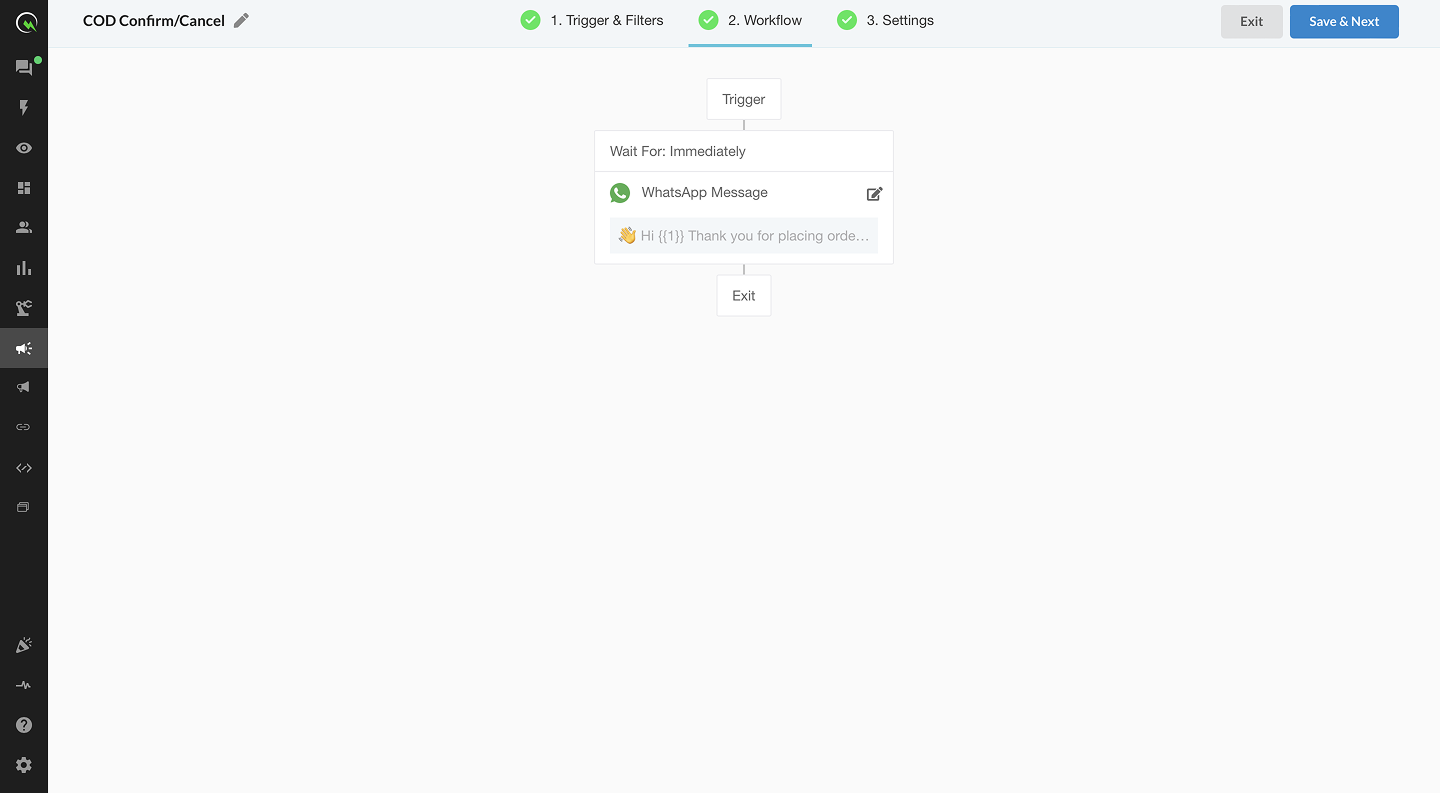
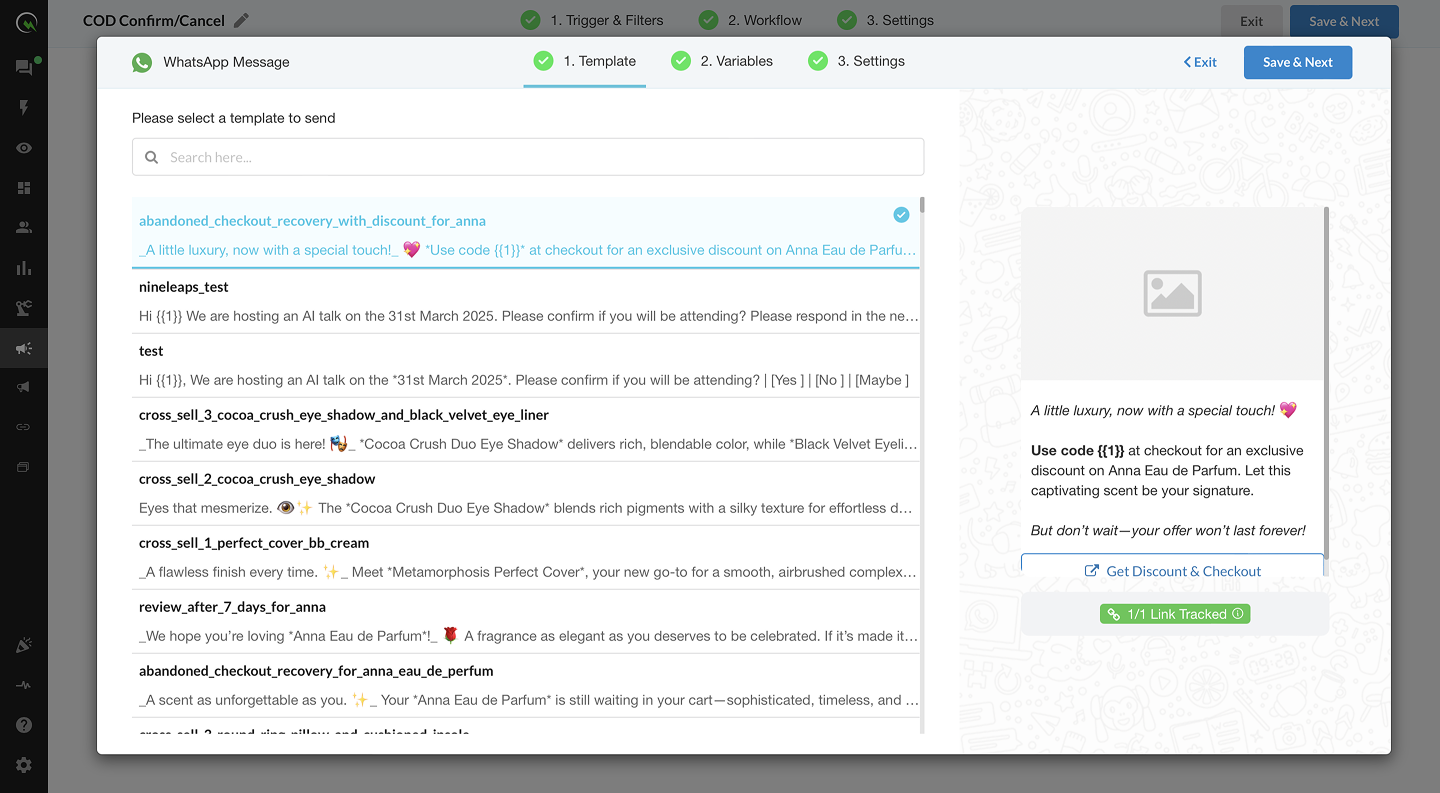
### **Select a WhatsApp Template**
Choose the **approved WhatsApp template** you want to use for each step in the workflow.
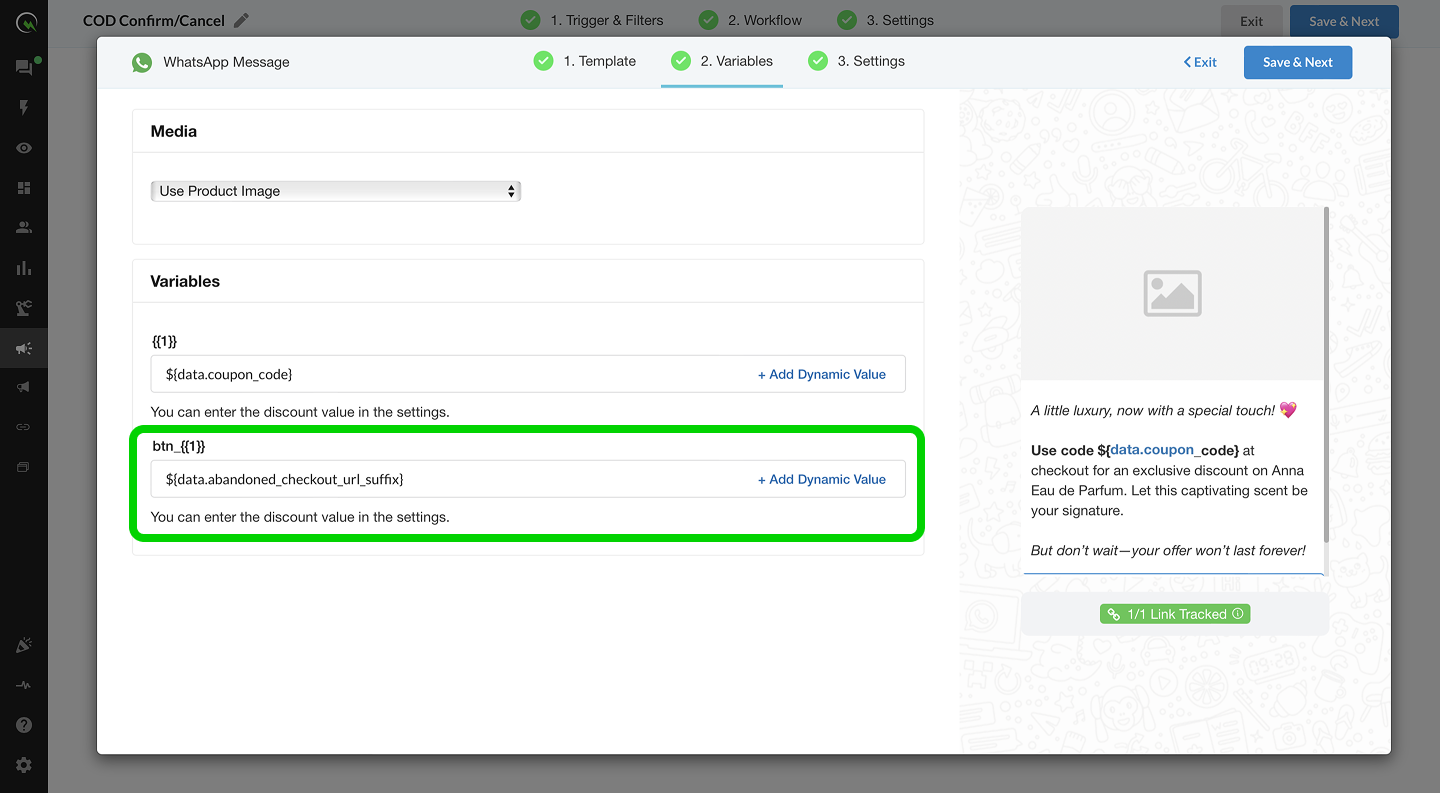
### **Provide Content for Variables**
When using templates that contain dynamic fields or buttons, QuickReply allows you to map those variables to specific customer or order data. This ensures messages feel personalized and relevant—without manual editing.
#### **Text Variables (e.g., {{name}}, {{order\_id}}, etc.)**
These are standard placeholder fields within your template content. You can:
* Map them to customer attributes (like name, email)
* Map them to Shopify order/fulfilment fields
* Manually enter fallback values if needed
**Example:**\
Template:
> “Hi {{name}}, your order {{order\_id}} is being packed. You’ll receive a tracking link soon.”
Mappings:
* `{{name}}` → Customer First Name
* `{{order_id}}` → Order ID from Shopify
***
#### **Button Variables (CTA Links)**
If your template includes **call-to-action (CTA) buttons**, you can dynamically generate the button URLs using customer/order/fulfilment data.
**1. Customer Data**
Use data specific to the customer like phone, email, or user ID.
**Example:**
* Button: **“View Profile”**
* URL: `https://yourcrm.com/user/{{phone_number}}`
* Mapping: `{{phone_number}}` → Customer’s mobile number
**2. Order Data**
Dynamically insert order details into your CTA links for tracking, reordering, etc.
**Example:**
* Button: **“Track Order”**
* URL: `https://yourstore.com/orders/{{order_id}}`
* Mapping: `{{order_id}}` → Shopify Order ID
**3. Fulfilment Data**
Generate tracking or invoice links based on fulfilment details (like courier, tracking number).
**Example:**
* Button: **“Track Shipment”**
* URL: `https://courierpartner.com/track/{{tracking_number}}`
* Mapping: `{{tracking_number}}` → Fulfilment tracking number from Shopify
#### **Things to Keep in Mind**
* All button URLs must start with **https\://**
* If a variable is **missing or null** for a user, the button may not render correctly—so always define fallbacks or use exit conditions.
* Do **not include promotional buttons** in **transactional templates**, as this violates WhatsApp policy.
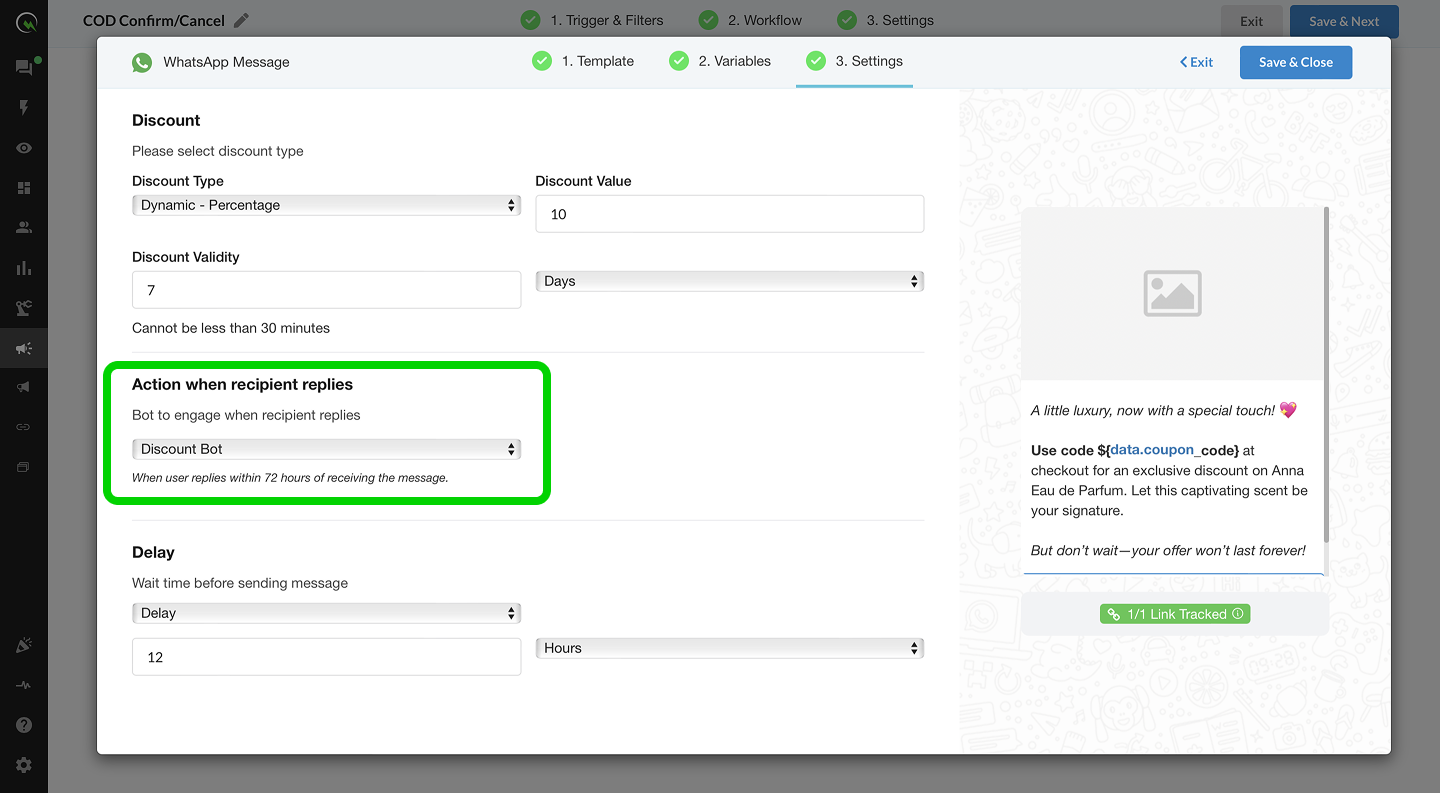
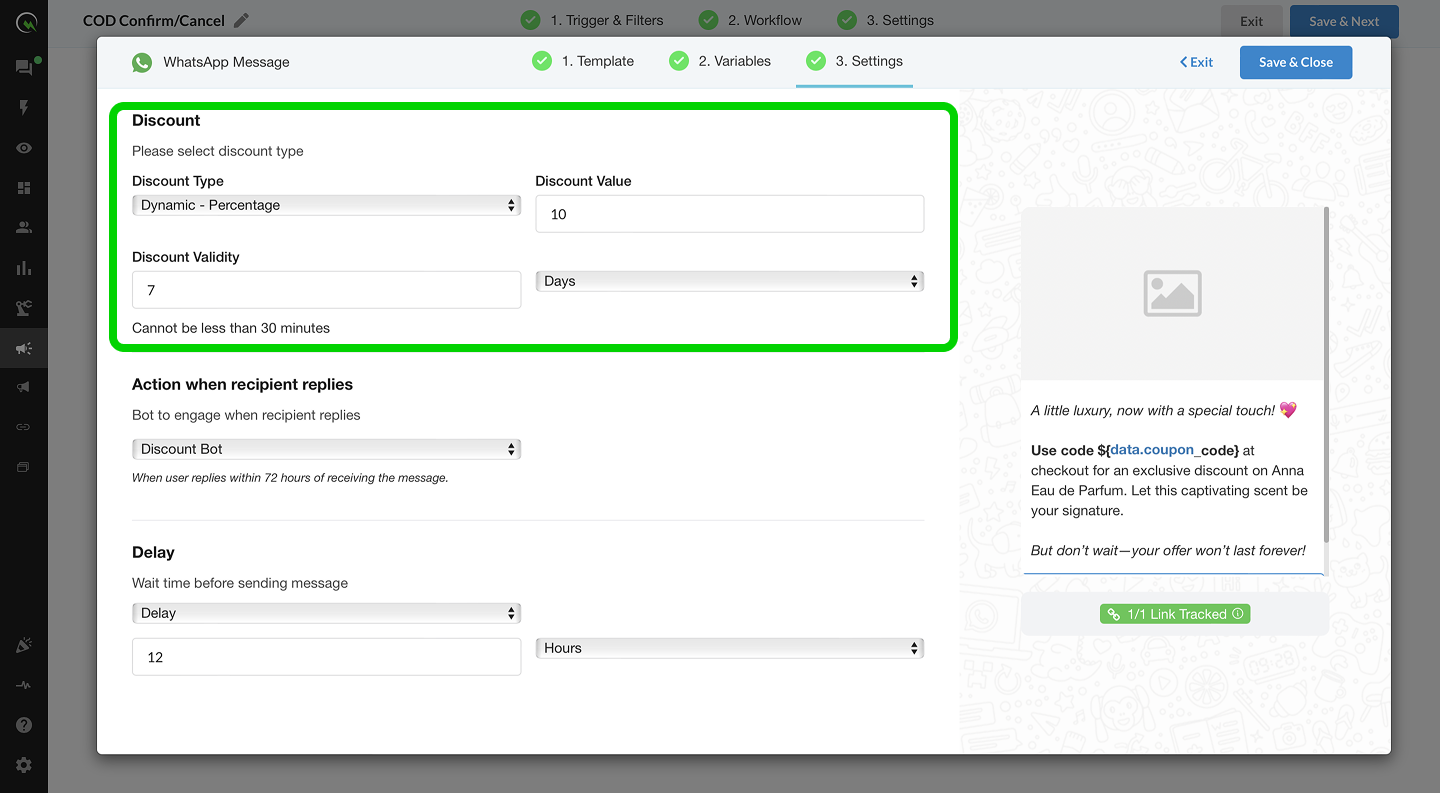
### **Configure Delay & Timing**
For each message step, define the delay between this step and the previous one:
* Delay can be set in **minutes, hours, or days**
### **Set Up Bot Mapping**
You can enable **Bot Mapping** if you expect replies to your drip messages:
* Use it to automatically respond or escalate the conversation
* Assign a bot flow to each template step for **2-way engagement**
### **Things to Keep in Mind**
* Drips work best when spaced out logically—avoid overwhelming users with back-to-back messages.
* Bots must be mapped correctly to the **intent** of the message.
***
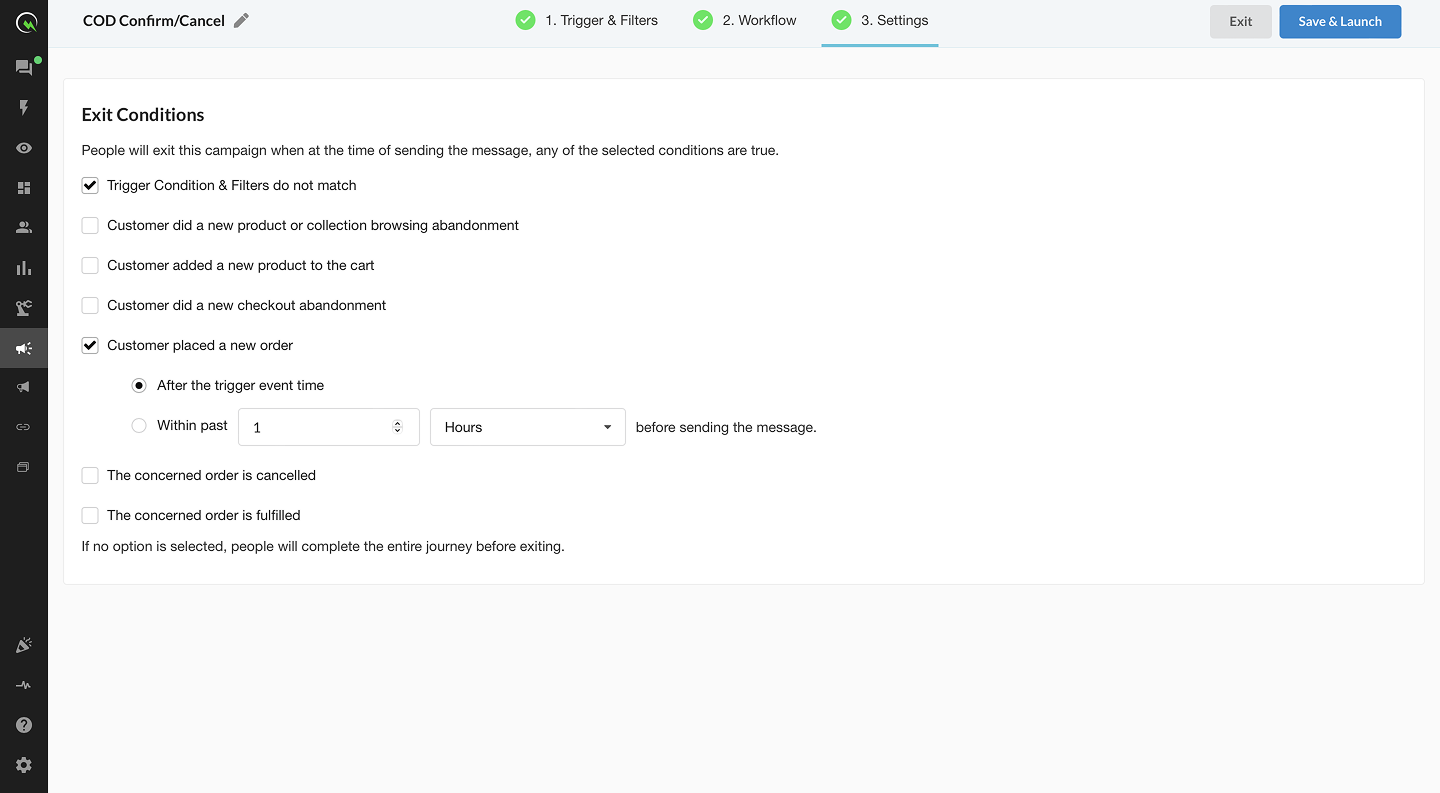
## **Exit Conditions**
### **Define When Users Should Exit the Campaign**
Set up exit rules to determine when a user should **stop receiving messages** in the sequence. Common exit conditions include:
* **User replies to any message** in the campaign
* **Order status is updated** (e.g., from pending to fulfilled)
* **The customer makes a purchase**
* **A custom tag is added** to the user profile (e.g., “Converted”)
### **Configure Exit Checkpoints**
You can apply exit conditions:
* Globally (for the entire campaign)
### **Things to Keep in Mind**
* Exit rules are critical for user experience—if not set, users may receive irrelevant follow-up messages.
* Use tags or webhook events to create custom exit paths for advanced workflows.
.png?alt=media)
.png?alt=media)