> For the complete documentation index, see [llms.txt](https://docs.quickreply.ai/llms.txt). Markdown versions of documentation pages are available by appending `.md` to page URLs; this page is available as [Markdown](https://docs.quickreply.ai/overview/messaging-channels/whatsapp/setup-whatsapp/setup-waba.md).
# Setup WhatsApp Business API
## Pre-requisites
Here are the [prerequisites to create a WhatsApp Business API.](/overview/messaging-channels/whatsapp/setup-whatsapp/pre-requisites.md) If you need help, you can [book a Demo with our Solutions Experts.](http://quickreply.ai/demo)
## Setting up your WhatsApp Business API
This section will guide you on how you can setup your WhatsApp Business API account with QuickReply.ai via the following phases:
#### Set up WABA - Newly Registered User
This guides you regarding the steps to setup your WhatsApp Business API account once you have reached [final stage of onboarding while signing up for QuickReply.ai](https://app.gitbook.com/o/uM0hInnriptBQczOFtyU/s/ePPO97Ju334NhhCzTEZP/~/edit/~/changes/301/overview/getting-started/sign-up-for-quickreply.ai#h_c87fc4cc6c)
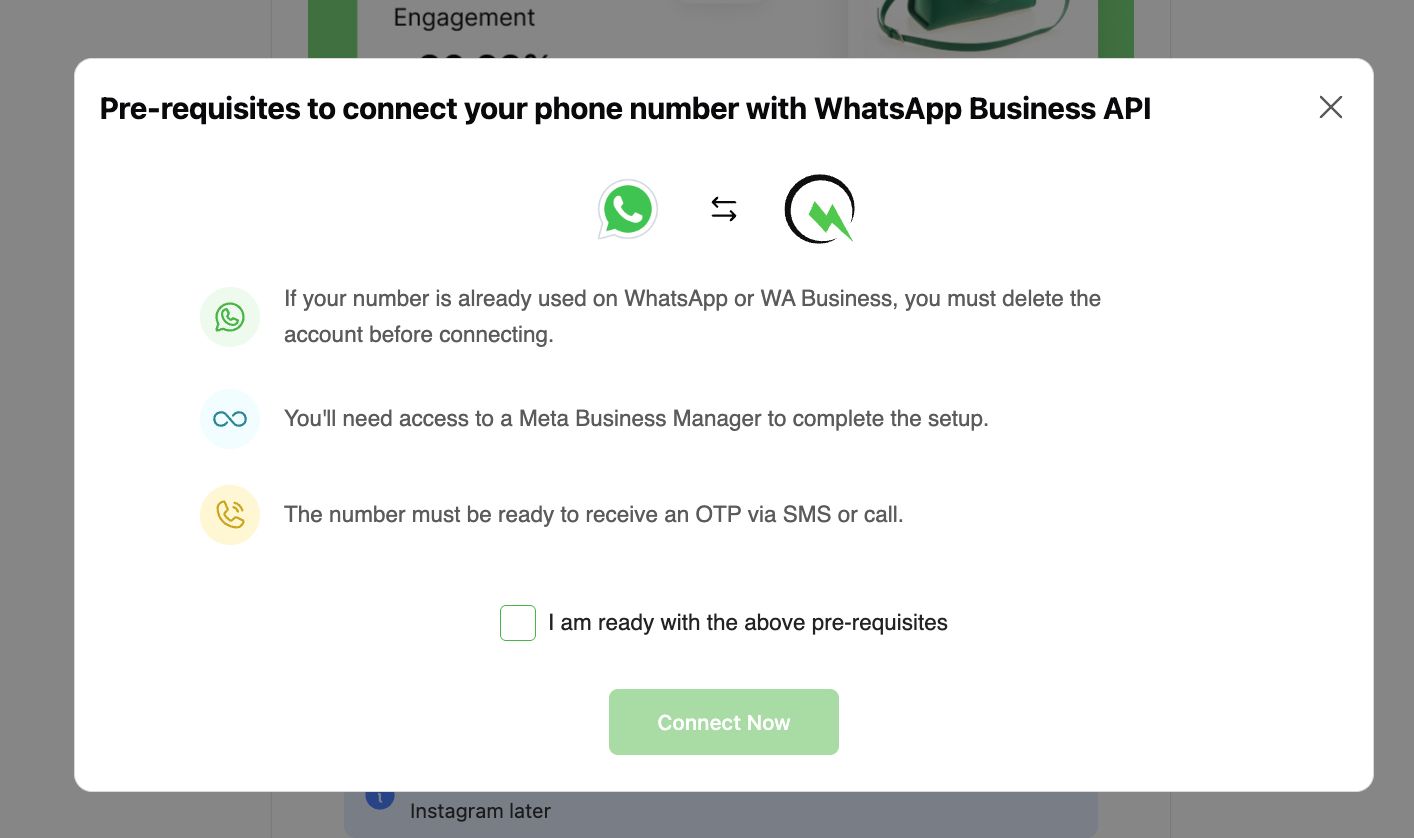
Once you are eligible as per the pre-requisites mentioned:
* Select I am ready with the above pre-requisites
* Click on "Connect Now" to initiate the [Embedded Signup](https://app.gitbook.com/o/uM0hInnriptBQczOFtyU/s/ePPO97Ju334NhhCzTEZP/~/edit/~/changes/301/overview/publish-your-docs-1/whatsapp/prerequisites-and-setup/setup-whatsapp-business-api/newly-registered-users#embedded-signup)
#### Setup WABA - Existing User
Once you are eligible as per the pre-requisites mentioned, open your WhatsApp Settings on QuickReply.ai by directly [going to this link](https://app.quickreply.ai/v2/settings/channels/whatsapp) or go to your QuickReply.ai dashboard > Your Profile (bottom-left of screen) > Settings > WhatsApp (Channel)
## Embedded Signup
Once you click "Connect Now" or "Connect your Number" it will open the Meta Embedded Signup popup.
1. Login with your facebook credentials which has the access to your Meta Business Manager.
2. Click "Continue" to allow permissions to QuickReply.ai and the Credits partner (if applicable - e.g. Gupshup, 360Dialog, Kaleyra, etc.)
3. Click on the first dropdown and select your "Business Portfolio" where you need to setup your WhatsApp Business API
{% hint style="info" %}
When selecting the "Business Portfolio" Please ensure that the Portfolio's status shows **"Verified"**
If the status is empty or is anything other than "Verified" please [verify your Business Manager](/overview/messaging-channels/whatsapp/setup-whatsapp/fbm-verification.md) first to continue further.
{% endhint %}
{% hint style="warning" %}
Meta can sometimes allow you to create a WhatsApp Business API account even without Meta Business Manager verification. However there are chances - you might not use the account to its fullest with restrictions to **Daily Messaging Limit, Display Name verification / visibility, and much more.**
{% endhint %}
4. Once you have selected the "Business Portfolio," click the second dropdown and select "Create a WhatsApp Business Account"
{% hint style="warning" %}
It's recommended to **always create a fresh WhatsApp Business Account** - otherwise the WABA setup could fail.
{% endhint %}
5. Click "Next" and fill in your Business' information that will be used on WhatsApp
{% hint style="warning" %}
Fill in the Name very wisely, this directly becomes your Display Name on WhatsApp.
* Learn more about [Display Name guidelines](https://www.facebook.com/business/help/757569725593362) here.
{% endhint %}
6. Click "Next" to find out two options:
1. Use a Display Name only: For testing and new businesses Meta provides upto two free numbers that do not need OTP verification. [Read more here.](/overview/messaging-channels/whatsapp/concepts/meta-free-number.md)
2. Add a New Number ( Recommended ): Always use this option to register the phone number which you / your business owns.
7. Choose the mode via which you would like to send the OTP on your phone.
{% hint style="warning" %}
Please ensure that your Phone Number can receive the OTPs. There is a limit to sending OTPs. If you exceed the retries - Meta might temporarily restrict sending the OTPs.
{% endhint %}
8. Enter the OTP to verify the phone number and click on "Next" and "Confirm" to proceed ahead
9. Meta will take a few minutes to connect your WhatsApp account. Please wait until it connects and then finally click "Finish" button.
## Number Connected
That was a great journey. You have finally set up your account, and your QuickReply.ai dashboard is ready for you.
{% hint style="success" %}
You can [**book a demo**](https://quickreply.ai/demo) with our Solutions Experts if you need any help.
If you want to dive deeper on your own, kindly write to our support team to allow your access to the dashboard, bypassing the demo.
{% endhint %}



.jpeg?alt=media&token=189539dd-7bfe-4147-a27b-bb8bb9a18a4f)

.jpeg?alt=media&token=4b1831d9-adc9-480e-acab-7734d464665f)
.jpeg?alt=media&token=d4b329cb-d245-4ff1-9c84-678018e50cf8)
.jpeg?alt=media&token=b9807abf-8ba1-4cbb-9fdc-88a1a25e506c)

.jpeg?alt=media&token=1a4f70fa-6930-4dc4-85df-08f9948b3541)
.jpeg?alt=media&token=8bf8aca6-a7e3-497d-afcd-d9ff567d099f)
.jpeg?alt=media&token=105798fc-9784-49e0-881b-fa8b2729c181)
.jpeg?alt=media&token=40f8af02-c8cd-45ec-8ccd-5158b4ae4e1c)
.jpeg?alt=media&token=c0ff8857-45bb-4899-921d-408e80939030)


