> For the complete documentation index, see [llms.txt](https://docs.quickreply.ai/llms.txt). Markdown versions of documentation pages are available by appending `.md` to page URLs; this page is available as [Markdown](https://docs.quickreply.ai/overview/getting-started/signing-up-and-activating-your-account.md).
# Signing up and activating your account
You can get started with QuickReply in two ways:
## 1. Shopify App Store
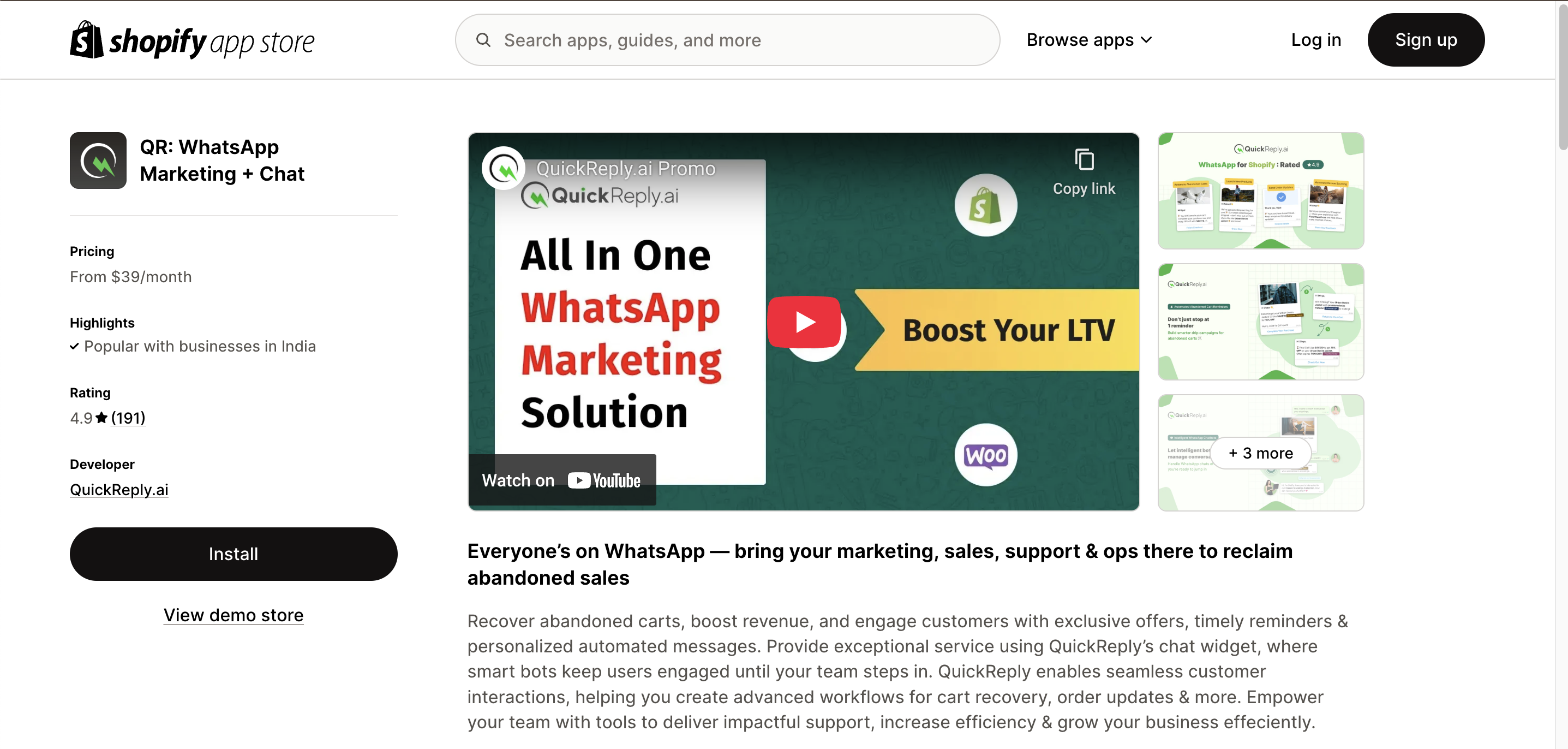
### Install QuickReply from the Shopify App Store
* Visit this [link](https://apps.shopify.com/helpdesk-livechat-chatbots) to install.
### Complete signup and verification
* **Signup Process**
After installation, complete the signup by providing the following details:
1. **Your Name**
2. **Email Address**
* Ensure it's valid, as we'll email a verification link to complete your setup.
3. **Choose a Strong Password**\
A strong password must:
* Include a lowercase letter
* Include an uppercase letter
* Include a digit
* Include a special character
* Be at least 8 characters long
* **Verification**\
After a successful sign-up, a verification link will be emailed to you. Click on "Verify Email Address" to continue onboarding.
{% hint style="info" %}
*Note - The verification link expires in 30 minutes but can be resent if needed.*
{% endhint %}
### Onboarding
* **Company Information**\
To create an account, please provide the following company details after verification:
* Company Name
* Website URL
* If you have signed up from Shopify, the website is pre-filled with the store URL
* Website Platform
* If you have signed up from Shopify, the platform option will be pre-filled
* Business Location
* Contact Phone Number
* Timezone
* Organization Size
* **Provide information that helps us give you a tailored experience.**
1. **Your role**
2. **Industry**
3. **How did you hear about QuickReply.ai**
* **Connect to WhatsApp Business API**\
To connect your [number](/overview/messaging-channels/whatsapp/setup-whatsapp.md) to the WhatsApp Business API, follow these steps:
1. Click **Connect to WhatsApp Business** to open a separate window.
2. Log in with a Facebook account linked to Meta Business Manager.
3. Select a verified [Business Manager](/overview/messaging-channels/whatsapp/concepts.md#meta-business-verification).
4. Create a new WhatsApp Business Account (WABA).
5. Set up your WhatsApp Business profile. The information provided will be visible to WhatsApp users.
6. Add and verify the number you plan to use with the WhatsApp Business API.
7. Allow 3-5 minutes for your account to be created.
{% hint style="info" %}
**If you're new to the WhatsApp Business API, you can skip the connection step and schedule a personalized demo with our product specialist for assistance.**
{% endhint %}
### Complete your account activation
To complete your account activation, you are required to book a demo (if not already done in the previous step) with our product specialist, who will
* Provide a platform overview
* Discuss your business requirements
* Explain pricing and plans
* Help with account activation
### Once you confirm your plan:
* You are subscribed to a plan
* You are added to the Onboarding WhatsApp group, which includes:
* Implementation Manager for setup assistance
* Support Team (WhatsApp group and email support, depending on your plan)
* [Service Level Agreement (SLA)](https://support.quickreply.ai/implementations/implementation-sla).
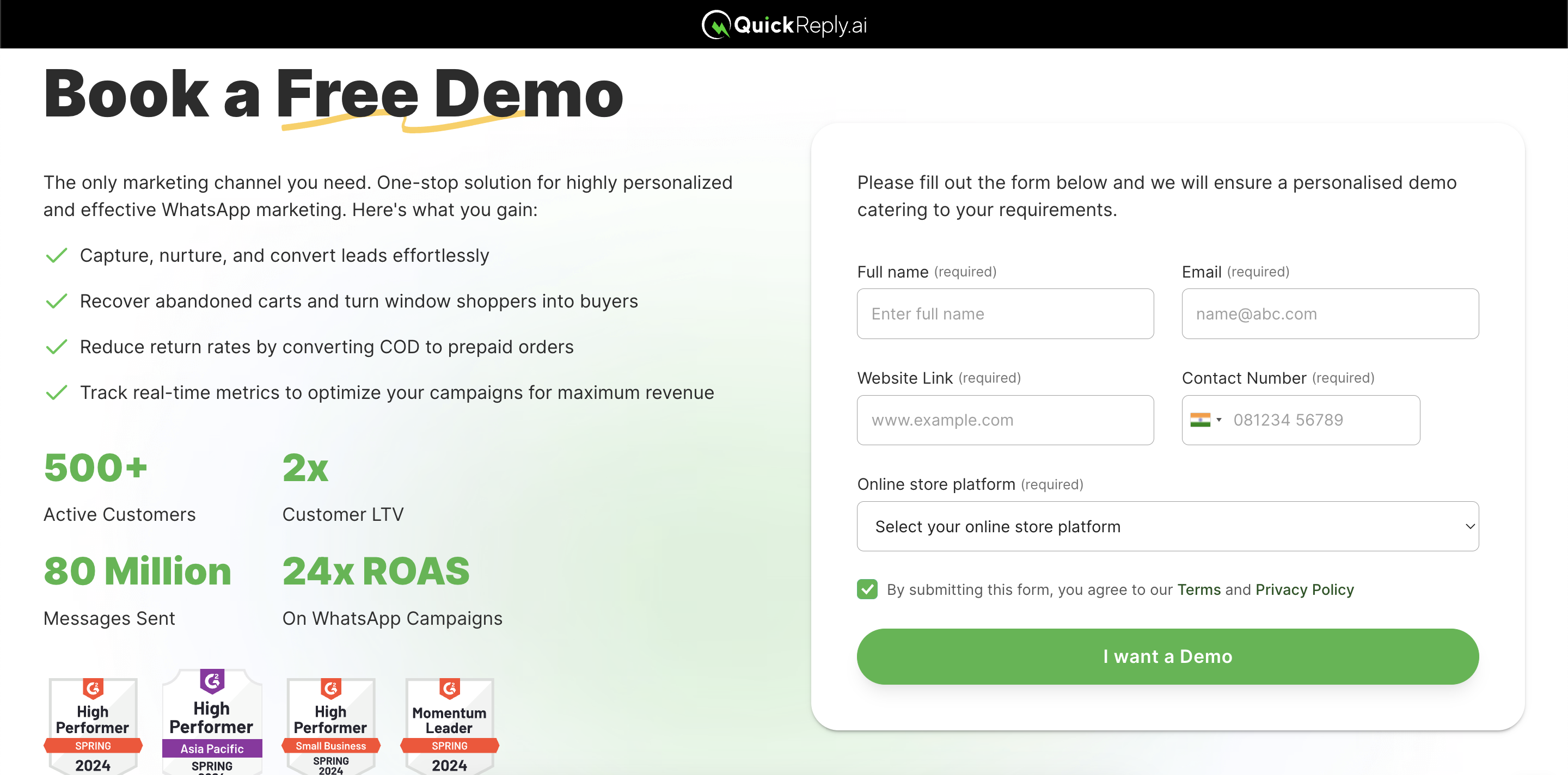
## 2. Direct Demo Booking & Account Activation
### Directly book a demo via the [QuickReply website](https://www.quickreply.ai/demo).
### The process is the same as above:
* Product specialist walkthrough
* Requirement discussion
* Pricing & plan confirmation
Once confirmed, our customer support will activate your account and add you to the Onboarding WA group.
Once your account is activated, you're ready to start setting up your WhatsApp business and automation workflows.\\
.png?alt=media)
.png?alt=media)
.png?alt=media)
.png?alt=media)
.png?alt=media)