# Install QuickReply.ai on Shopify

## App Installation on Shopify App Store <a href="#h_15ac3b3a98" id="h_15ac3b3a98"></a>

1. Go to your Shopify store to [install QuickReply.ai app](https://apps.shopify.com/helpdesk-livechat-chatbots)

<figure><img src="https://downloads.intercomcdn.com/i/o/sfg6fi4v/1912852996/daed06c1fa09d52d1ffe654249f1/WhatsApp+Image+2026-01-03+at+14_13_08.jpeg?expires=1767528000&#x26;signature=1776d5833f4895cf2bcfa7e721448606c8b0ddd9ca9a668107e90a1f318c64f3&#x26;req=dSkmFMF7n4hWX%2FMW3Hu4gcbp94FDiMl6mfqfrj9tkSKchF424T8cRbPnyR5E%0AvQ%3D%3D%0A" alt="" width="375"><figcaption></figcaption></figure>

2. Accept all the permissions and click **Install**

<figure><img src="https://downloads.intercomcdn.com/i/o/sfg6fi4v/1912853336/e01dae4f343045a8cca96129680b/WhatsApp+Image+2026-01-03+at+13_42_24.jpeg?expires=1767549600&#x26;signature=70dab9dc2ed43687070ee68d696e733d1d5bf4b7bee33aa50f2e409c7c21bdf0&#x26;req=dSkmFMF7noJcX%2FMW3nq%2BgQoX1tzVahFj1ZTPMp1ubrz6GoTf4tuK7RbS6bhn%0AgStHjvp63W6%2FbKEMLBq1iyv1rsA%3D%0A" alt="" width="375"><figcaption></figcaption></figure>

## Complete Shopify App verification <a href="#h_f46f2bd43a" id="h_f46f2bd43a"></a>

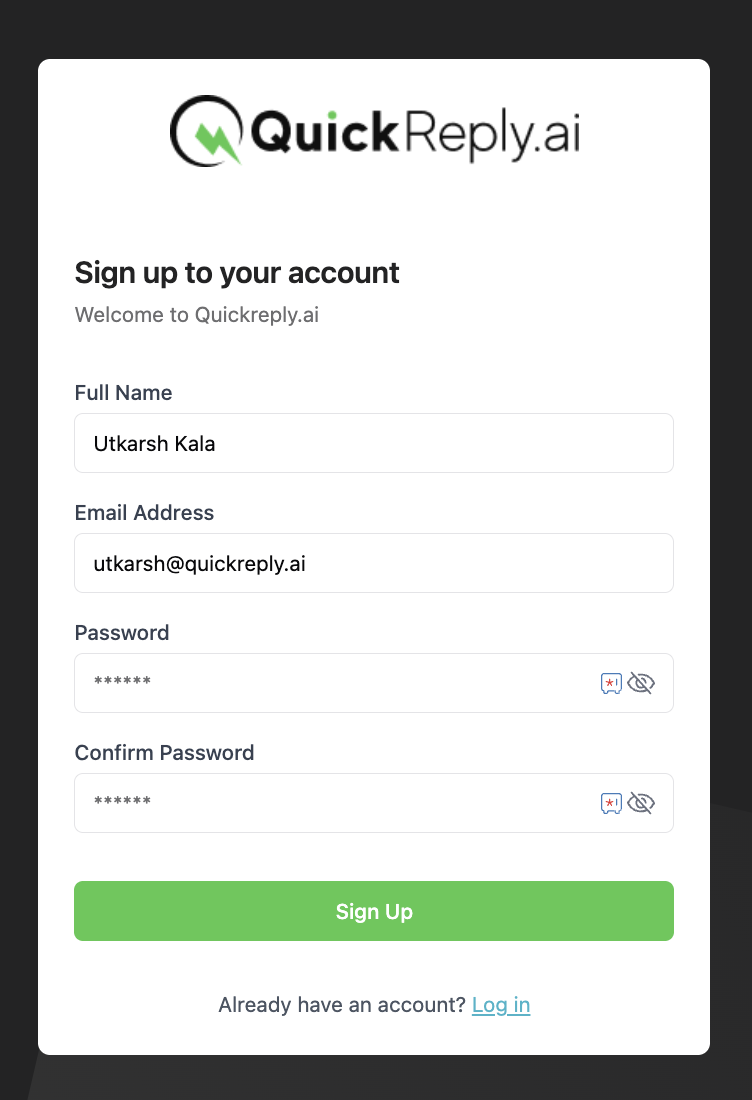
After installation, complete the signup by providing the following details.

<figure><img src="https://1325107618-files.gitbook.io/~/files/v0/b/gitbook-x-prod.appspot.com/o/spaces%2FePPO97Ju334NhhCzTEZP%2Fuploads%2F9bd9VfrUWclZHZkksJ0p%2Fimage.png?alt=media&#x26;token=b494d33d-3024-408a-b405-afcd581c611a" alt="" width="375"><figcaption></figcaption></figure>

1. Your Name
2. Email Address
   * Ensure it's valid, as we'll email a verification link to complete your setup.
3. Choose a Strong Password A strong password must:
   * Include a lowercase letter
   * Include an uppercase letter
   * Include a digit (numeric character)
   * Include a special character (!@$$)
   * Be at least 8 characters long

<figure><img src="https://downloads.intercomcdn.com/i/o/sfg6fi4v/1912854573/e405cac9214393b53b1dc6bf6c23/WhatsApp+Image+2026-01-03+at+13_43_58.jpeg?expires=1767549600&#x26;signature=d1ec01087ddf7450521ccced63a3ecc66924bc000bb4d2dc80bf26922d26ca51&#x26;req=dSkmFMF7mYRYWvMW3nq%2BgY9Pr0h80uzmaVrMjU%2B6iF7aVEbXeaHuwV8%2BOofC%0AhEEttVB0bdEJyJC5XG7q0yIKiY8%3D%0A" alt="" width="375"><figcaption></figcaption></figure>

4. After a successful sign-up, a verification link will be emailed to you on the email address you provided in 'point b.' Click on "Verify Email Address" to continue onboarding.

<figure><img src="https://downloads.intercomcdn.com/i/o/sfg6fi4v/1912875872/0eb15c06386dd8002aa8f04abc54/WhatsApp+Image+2026-01-03+at+13_45_11.jpeg?expires=1767549600&#x26;signature=f81832216e47bc5fcd1acf4d75daa2401c14b99b7a7f2c91f6c8224936dd509a&#x26;req=dSkmFMF5mIlYW%2FMW3nq%2BgcbGDcNy60kFMgnxA5pF%2B6d8w%2Fm2HpLkfgw74TPh%0AnN4YseiIgE%2FAE8ZN6uFRGOWOXRI%3D%0A" alt="" width="375"><figcaption></figcaption></figure>

{% hint style="warning" %}
Note - The verification link expires in 30 minutes but can be resent if needed.
{% endhint %}

<figure><img src="https://downloads.intercomcdn.com/i/o/sfg6fi4v/1912875396/4d2ae73cf0a70f52cbc78cd95d10/WhatsApp+Image+2026-01-03+at+13_45_23.jpeg?expires=1767549600&#x26;signature=43b607a34340c1efda2d3c315a1364a52dfdf89d750cf0bb21d0772c32d3bccb&#x26;req=dSkmFMF5mIJWX%2FMW3nq%2BgW88BOe7Zp0CApEflTBami6VzpnJ2nVfmSHXOpUJ%0ATmKv%2FX8XJr2SBFxcoZTvFLiYeNM%3D%0A" alt="" width="375"><figcaption></figcaption></figure>

## Onboarding <a href="#h_3cb4676605" id="h_3cb4676605"></a>

Once your email is verified, please provide the following details to complete your onboarding.

### Fill Company Details <a href="#h_e94adbabbc" id="h_e94adbabbc"></a>

1. Company Name
2. Website URL

{% hint style="info" %}
If you have signed up from Shopify, the website is pre-filled with the store URL
{% endhint %}

3. Website Platform

{% hint style="info" %}
If you have signed up from Shopify, the platform option will be pre-filled
{% endhint %}

4. Business Location
5. Contact Phone Number

{% hint style="warning" %}
This will be used to send you important alerts about your account on your WhatsApp
{% endhint %}

6. Timezone
7. Organization Size

<figure><img src="https://downloads.intercomcdn.com/i/o/sfg6fi4v/1912859071/5e2432491f6b89cd74fd0786cc06/WhatsApp+Image+2026-01-03+at+13_46_02.jpeg?expires=1767549600&#x26;signature=b3923d0e60dfd2a8158750d661a95ebc78904b02f9a46adf49cda898faf76848&#x26;req=dSkmFMF7lIFYWPMW3nq%2BgUaHale1m4w8LCZYSaojsSTzhKaZCOb81Y7HHII5%0AXX4VUIUGMF3Iv0IH%2BuJUsjeNVuU%3D%0A" alt="" width="375"><figcaption></figcaption></figure>

### Fill Your Details <a href="#h_84f66d4e70" id="h_84f66d4e70"></a>

Provide information that helps us give you a tailored experience.

1. Your role
2. Industry
3. How did you hear about QuickReply.ai

<figure><img src="https://downloads.intercomcdn.com/i/o/sfg6fi4v/1912879171/3d5c29c869a291cb0ea3d26a725c/WhatsApp+Image+2026-01-03+at+13_46_25.jpeg?expires=1767549600&#x26;signature=e1fe0f5bd48d39e2263770d2961cf4a6b3743c30a64094d8c376cf7f89b22c3d&#x26;req=dSkmFMF5lIBYWPMW3nq%2BgaAyyO2%2B3RyVJOijbisAYRg5hF2nJvKwdgjrFf3N%0A6i%2FIDVx9HAW9uYSxhc5RqvflyoI%3D%0A" alt="" width="375"><figcaption></figcaption></figure>

## Final Onboarding Steps <a href="#h_c87fc4cc6c" id="h_c87fc4cc6c"></a>

Great job. You have almost reached the final stage of onboarding. To proceed further, you need to create a WhatsApp Business API account with QuickReply.ai

Here are the [prerequisites to create a WhatsApp Business API.](https://docs.quickreply.ai/overview/messaging-channels/whatsapp/setup-whatsapp/pre-requisites) If you need help, you can book a Demo with our Solutions Experts.

<figure><img src="https://downloads.intercomcdn.com/i/o/sfg6fi4v/1912864880/0ac651f493f1550ed48de788b2b3/WhatsApp+Image+2026-01-03+at+13_46_39.jpeg?expires=1767549600&#x26;signature=c711dfeaba4f991a75fd2c77b599d51efa2f2a2b442f8fd46734ea15e7ac156c&#x26;req=dSkmFMF4mYlXWfMW3nq%2BgRgmwzCwESuoYXwahCg8jQaPJ5ZDmQnUu9KsvdPw%0AWXu7cG0KC3TbEuno6icbyn8MZ5M%3D%0A" alt="" width="375"><figcaption></figcaption></figure>

1. If you do not have these ready, you can choose to skip the setup at this step and [set up your WhatsApp Business API from the dashboard.](https://docs.quickreply.ai/messaging-channels/whatsapp/setup-whatsapp/setup-waba#setup-waba-existing-user)
2. If the pre-requisites are satisfied, you can [continue to create the WhatsApp Business API account.](https://docs.quickreply.ai/overview/messaging-channels/whatsapp/setup-whatsapp/setup-waba)

## Book a Demo

Once you have completed your account activation, to complete your account activation, you are required to book a demo (if not already done) with our product specialist, who will:

1. Provide a platform overview
2. Discuss your business requirements
3. Explain pricing and plans
4. Help with account activation

{% hint style="success" %}
[Book a demo](https://www.quickreply.ai/demo) with our product specialist here.
{% endhint %}

### Once you confirm your plan:

* You are subscribed to a plan
* You are added to the Onboarding WhatsApp group, which includes:
  * Implementation Manager for setup assistance
  * Support Team (WhatsApp group and email support, depending on your plan)

{% hint style="success" %}
You can find our [Service Level Agreements (SLAs)](https://support.quickreply.ai/) here.
{% endhint %}

## Welcome Onboard <a href="#h_97b1fc4d2b" id="h_97b1fc4d2b"></a>

That was a great journey. You have finally set up your account, and your QuickReply.ai dashboard is ready for you.

<figure><img src="https://downloads.intercomcdn.com/i/o/sfg6fi4v/1912865877/06bca1e163844ff029f046b1bad2/WhatsApp+Image+2026-01-03+at+13_48_56.jpeg?expires=1767549600&#x26;signature=a5ba06328a34abdb171999c60946ba1795f1aeaab5daa0d92b3694e88714bfe7&#x26;req=dSkmFMF4mIlYXvMW3nq%2BgfRKptegyLofuO4PJe4bwwwv7cqKwZ8mzPU3XzOW%0AxzD7mV9VHtBDY9DrSG6X50ygEnY%3D%0A" alt="" width="375"><figcaption></figcaption></figure>

{% hint style="success" %}
You can [**book a demo**](https://quickreply.ai/demo) with our Solutions Experts if you need any help.

If you want to dive deeper on your own, kindly write to our support team to allow your access to the dashboard, bypassing the demo.
{% endhint %}

<figure><img src="https://downloads.intercomcdn.com/i/o/sfg6fi4v/1912866468/ad13f34d38ac6d51a6458d695bdb/WhatsApp+Image+2026-01-03+at+13_49_21.jpeg?expires=1767549600&#x26;signature=41f69f3f2822204ce73d2ac6df3cabd50658813203df615c5f134c3be0e5fb57&#x26;req=dSkmFMF4m4VZUfMW3nq%2BgX%2Fm4S4ACBp%2BHamop8GyOVwDszX5m79DPrbJkPBq%0ASDa9taNjpVFMtV3S2KBb7fmafpc%3D%0A" alt="" width="375"><figcaption></figcaption></figure>

## Setup your Messaging Channels

{% content-ref url="../messaging-channels" %}
[messaging-channels](https://docs.quickreply.ai/overview/messaging-channels)
{% endcontent-ref %}