> For the complete documentation index, see [llms.txt](https://docs.quickreply.ai/llms.txt). Markdown versions of documentation pages are available by appending `.md` to page URLs; this page is available as [Markdown](https://docs.quickreply.ai/help-and-referrence/faqs/app-notifications/how-to-subscribe-to-push-notifications-on-browser.md).
# How to subscribe to push notifications on browser?
Receive instant notifications to keep your finger on the pulse of your conversations and workflows. Whether it's a new chat bubbling up or a lead springing into action, you'll never miss a beat. Here’s what you’ll be notified about whenever there is a:
* **New Incoming Conversation!**: Catch every new conversation as it comes.
* **New Conversation Assigned to You**: Stay on top of conversations that are routed your way.
* **New Lead Captured**: Be the first to know when a potential lead is captured.
* **New Reply from Customer**: Get updates whenever a customer responds.
## **Enhance Your Alerts with AI**
With our AI-builder, you can tailor your alerts further by setting up actions to trigger notifications at specific points in the conversational flow, ensuring you’re alerted exactly when needed.
## **How to subscribe to push notifications?**
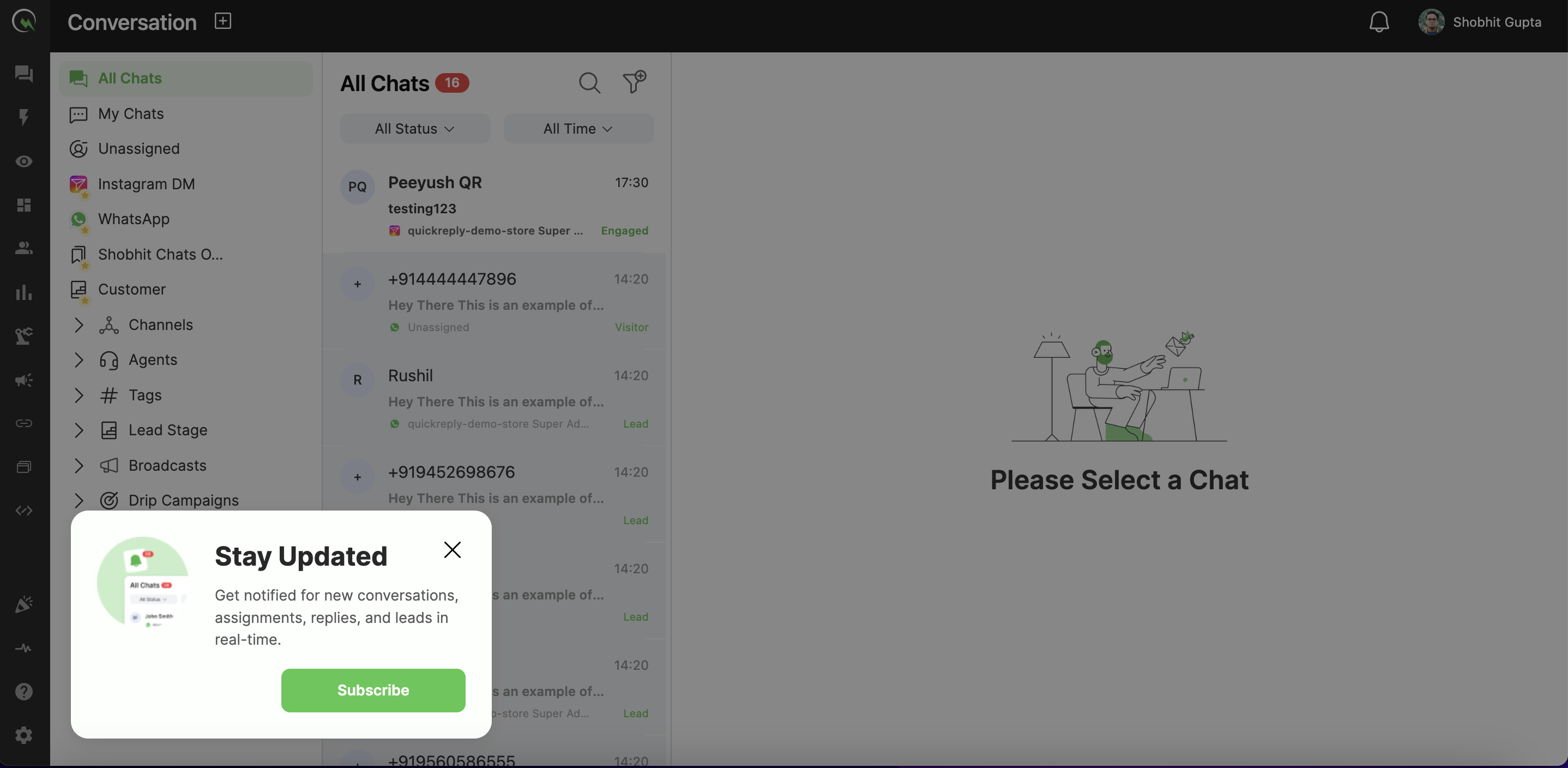
1. When you open our app, a pop-up will appear at the bottom-left corner of your screen offering you to subscribe to notifications. Click on the **Subscribe** button to move forward.
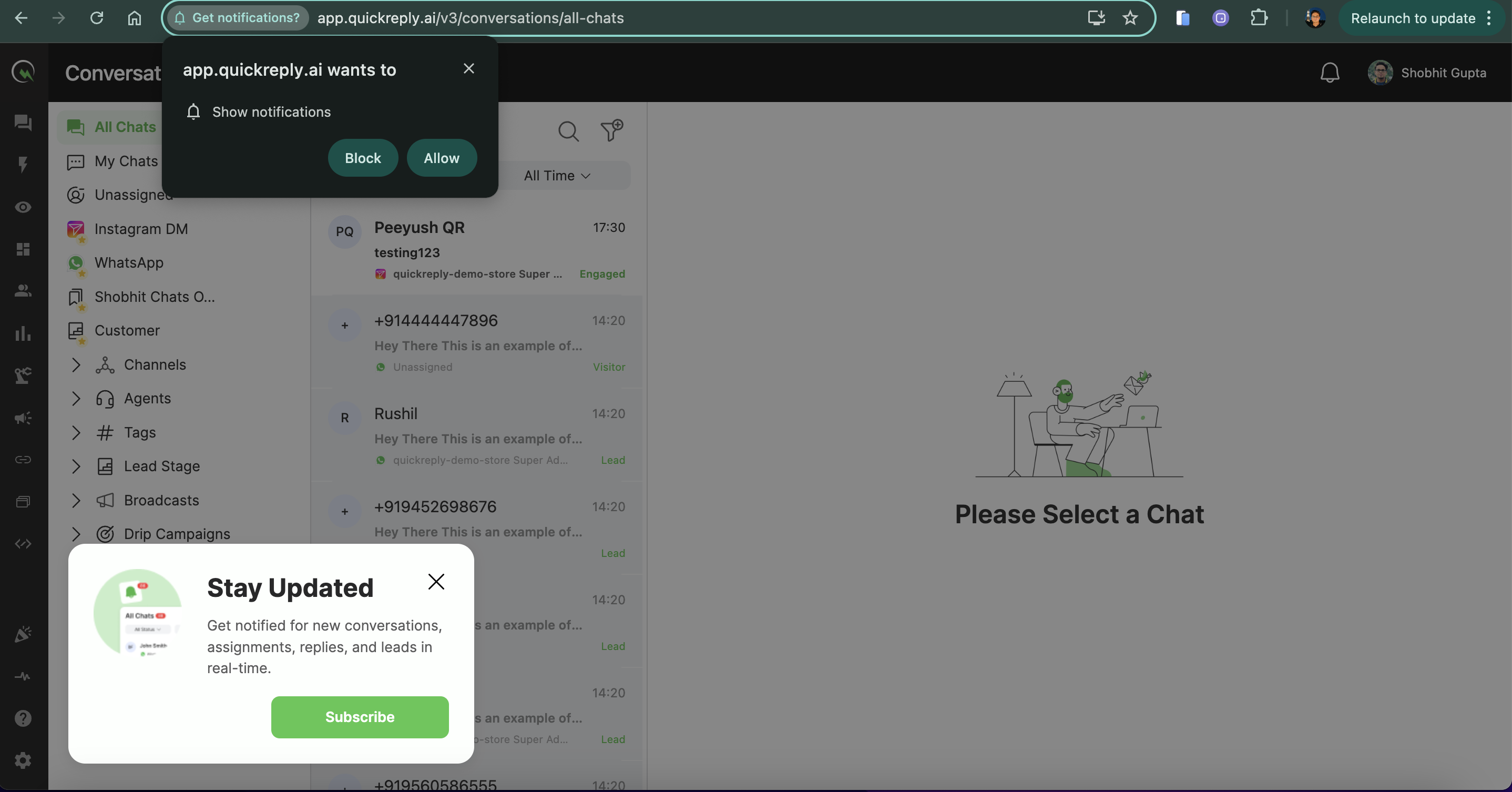
2. Following your subscription request, your browser will ask whether to **Allow** or **Block** notifications. Click **Allow** to receive notifications.
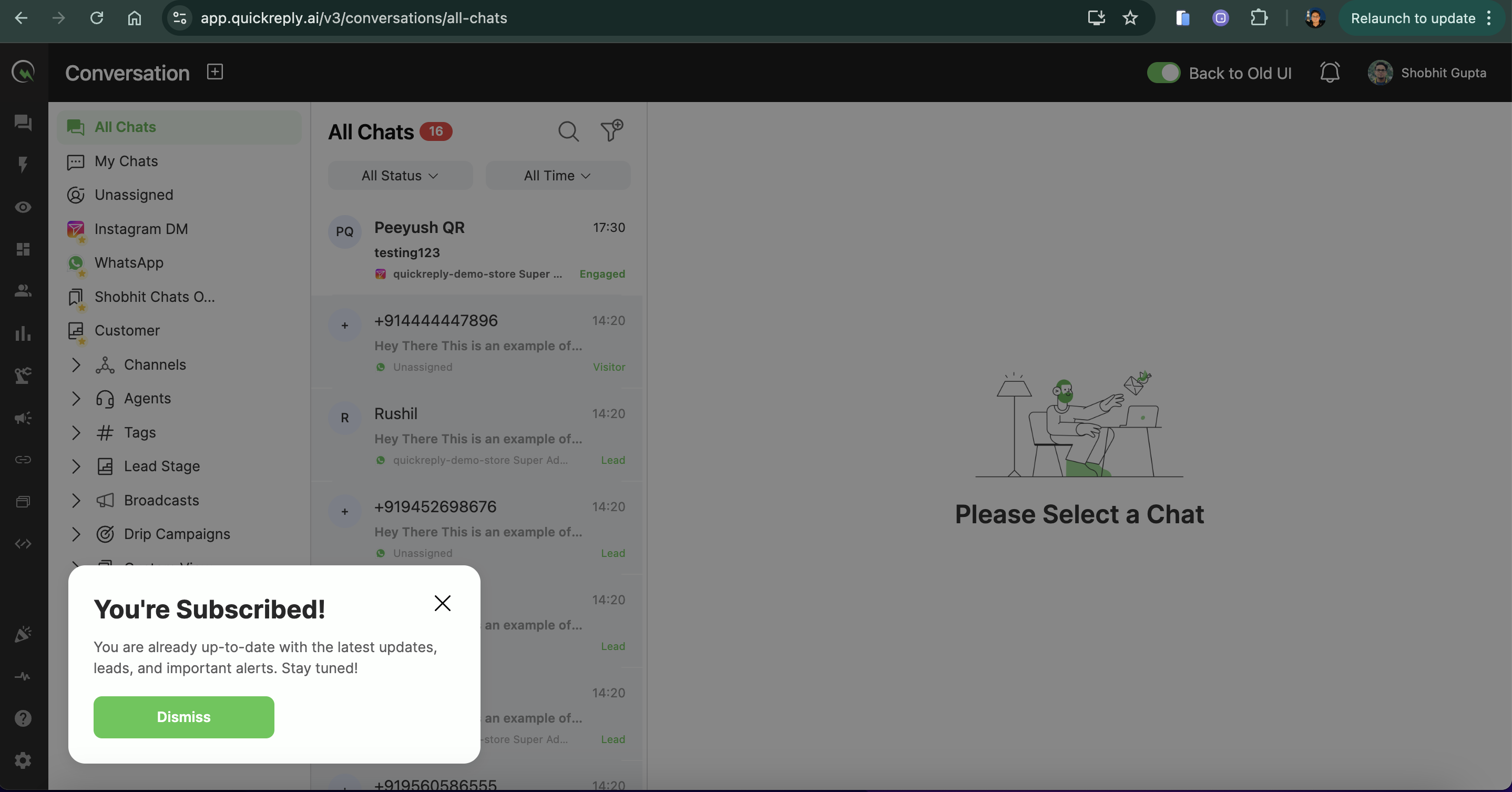
3. After permitting notifications, you’re all set to receive real-time alerts directly on your device.
## **Missed the Pop-up?**
If you happen to dismiss the initial pop-up to subscribe to notification, just click on the bell icon located at the top right of your screen anytime to subscribe to notifications and stay connected.
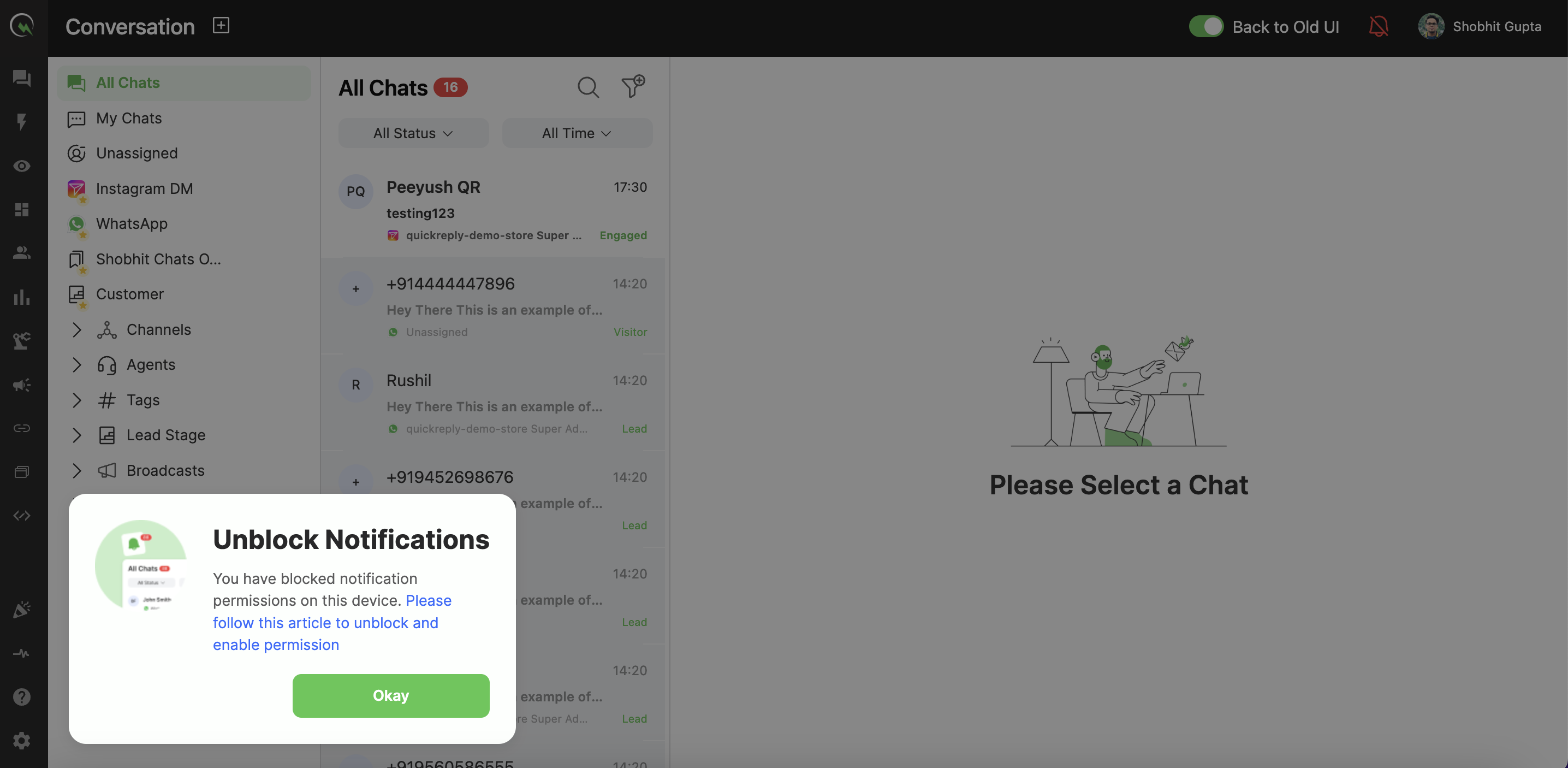
## **Blocked notification permission?**
If you clicked on **block** instead of **allow**, follow this guide to [**unblock notification permission**](/help-and-referrence/faqs/app-notifications/how-to-unblock-notification-permission.md)